Introduction
Canvas and Turnitin are often mentioned together because many schools use them in combination to check originality, support grading, and streamline assignment workflows. But one of the most common questions students and instructors ask is simple: does Canvas use Turnitin by default?
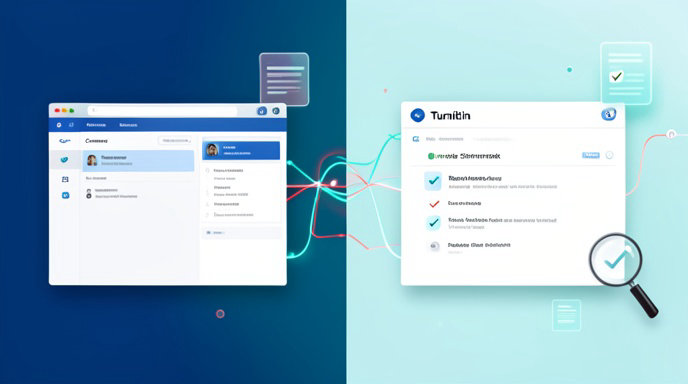
The short answer is no, Canvas does not automatically “use” Turnitin in every course. Turnitin is typically connected to Canvas through an integration, and the exact setup depends on your institution. In some schools, Turnitin is built into the Canvas assignment workflow through a plagiarism-checking framework. In others, it is added as an external tool or through a newer LTI integration that provides access to Turnitin assignments and tools inside Canvas.
That distinction matters because it affects how assignments are created, how students submit work, where similarity reports appear, what instructors can edit, and how grading is handled.
How Canvas and Turnitin Work Together
Canvas is a learning management system, or LMS. It is the platform instructors use to post content, create assignments, collect submissions, manage grades, and communicate with students.
Turnitin is a separate service used for originality checking, feedback, and in some cases grading support. When the two are connected, Canvas becomes the front-end where assignments are created and submitted, while Turnitin handles the originality analysis and, depending on the setup, feedback and markup tools.
There are a few ways this can work:
1. Turnitin Plagiarism Framework in Canvas
This is the built-in Canvas assignment workflow with Turnitin enabled as the plagiarism review tool. In this model, instructors usually create a normal Canvas assignment and then turn on Turnitin in the assignment settings. Students submit through Canvas, and the similarity report is generated behind the scenes.
2. Turnitin LTI 1.3 Integration
This integration gives access to Turnitin assignments and tools from within Canvas. Instructors can create a Turnitin assignment from inside the Canvas course, and depending on the institution’s license, they may also have access to additional Turnitin tools. This integration is often used when faculty want Turnitin’s own grading and feedback environment.
3. Older External Tool Setup
Some institutions still use an older method where Turnitin is added as an external tool. This is less integrated than the newer workflows, but it still connects Canvas to Turnitin.
Because institutions choose different setups, two students in different schools may both “use Turnitin in Canvas,” but the experience may look noticeably different.
Is Turnitin Built into Canvas?
Not exactly.
Canvas does not universally include Turnitin as a standard, always-on feature for every user. Instead, schools enable one of several supported integrations. That means Turnitin may appear to be built into Canvas from the user’s perspective, but technically it is usually an add-on integration configured by the institution.
This is why one Canvas course may show plagiarism review settings directly inside the assignment editor, while another may have a separate Turnitin assignment type or external tool option.
If you are a student, you often cannot tell from the course homepage alone which version your class uses. The submission instructions, assignment settings, and appearance of the report are the real clues.
Common Ways Turnitin Appears in a Canvas Course
Depending on your institution’s configuration, you might see Turnitin in one of these forms:
- A standard Canvas assignment with Turnitin plagiarism review enabled
- A Turnitin assignment created through the Canvas assignment menu
- An external tool option that launches Turnitin from Canvas
- A similarity score or originality report linked from SpeedGrader
- A Turnitin grading environment such as Feedback Studio or GradeMark
The practical takeaway is that “using Turnitin” in Canvas can mean originality checking only, or originality checking plus grading and feedback tools.
What Students Should Expect When Submitting Assignments
For students, the experience usually starts with a normal Canvas assignment page. You click the assignment, review the directions, and submit a file or text entry depending on what the instructor enabled.
However, Turnitin does not work the same way for every submission type.
File Uploads vs. Text Entry
In many Turnitin-enabled Canvas workflows, the instructor must choose Online submission and then File Uploads. That is especially important for plagiarism checking. Some guidance from institutions notes that if text entry is selected for certain Turnitin assignments, similarity checking may not behave as the instructor expects for later submissions.
In practice, students should pay close attention to the submission type specified by the instructor:
- File upload submissions are the most common for Turnitin similarity checking
- Text entry submissions may be supported in some configurations, but not always in the same way
- External tool assignments may launch a Turnitin interface rather than a standard Canvas file picker
If the instructor says “upload a document,” that is usually the safest indication that Turnitin will analyze the file properly.
What Happens After Submission
After a student submits a paper, Turnitin compares it against selected repositories, which may include:
- Internet sources
- Published journals and academic content
- Previously submitted student papers
- Other comparison databases used by the institution
The result is a similarity report, often shown as a percentage. That percentage is not a plagiarism verdict. It is an indicator of how much submitted text matches other sources.
A high similarity score does not automatically mean misconduct, and a low score does not guarantee that the paper is original in every respect. Common phrases, bibliography entries, properly quoted passages, template language, and assignment instructions can all contribute to the score.
When Will Students See the Similarity Report?
This depends on the instructor’s settings and the institution’s Turnitin configuration.
Some courses allow students to view the report immediately after submission. Others delay visibility until after grading, after the due date, or until the instructor manually releases the report.
Why does this matter?
Because students sometimes submit a draft, review the report, revise the paper, and resubmit before the deadline. That only works if the instructor has enabled report visibility and resubmission options appropriately.
In some institutions, the default recommendation is to show the report immediately so students can learn from it and make corrections before the final deadline. But instructors can choose different visibility settings based on the assignment goals.
How Similarity Reports Appear in Canvas
The appearance of the similarity report varies depending on the integration.
In a Canvas plagiarism framework setup, the similarity score may appear directly in SpeedGrader or on the assignment details page. Students may click that score to open the report in Turnitin Feedback Studio.
In some quick integration setups, Canvas may display a similarity score in the SpeedGrader interface, but the full report opens in Turnitin’s viewer.
One important detail from institutional guidance is that the similarity score shown in Canvas can sometimes appear lower than the full report inside Turnitin. This is because Canvas may display only similarity with general sources such as internet content or journals, while matches against other student papers submitted to the same assignment may only appear once the paper is opened in Turnitin Feedback Studio.
That means if an instructor or student sees a score in Canvas and then opens the report in Turnitin, the number may change or become more complete.
Why Similarity Scores Can Differ Between Canvas and Turnitin
This is one of the most confusing issues for users.
A similarity score in Canvas may not always reflect the full set of matches that Turnitin identifies. In some setups, Canvas shows a partial score or a simplified view, while the complete analysis is available only inside Turnitin’s reporting interface.
This difference can happen because:
- Canvas is showing a summary, not the full Turnitin report
- Some match categories are excluded from the Canvas display
- Matches against papers in the same assignment may not appear in the initial Canvas score
- The full originality analysis is stored in Turnitin’s own system
For students, this means the number displayed in Canvas should be treated as a preview or summary, not the final word.
For instructors, it means you may need to open the report inside Turnitin to make a more informed judgment about the source matches.
What Instructors Need to Know About Setup
Instructors cannot assume every Canvas course is configured the same way. If your institution supports Turnitin, the available options depend on the license and integration type.
When creating a Turnitin-enabled assignment, instructors may need to decide:
- Whether to use a standard Canvas assignment with plagiarism review
- Whether to create a Turnitin assignment through the Canvas menu
- Whether to use an external tool
- Whether to use Canvas SpeedGrader or Turnitin’s own feedback tools
- Which repositories to compare against
- Whether students can see the similarity report immediately
- Whether resubmissions are allowed
- Whether stored submissions should be kept in Turnitin’s database
These choices affect both teaching workflow and student experience.
Canvas Assignment Settings vs. Turnitin Assignment Settings
Another common point of confusion is where specific settings should be edited.
In many integrations, some settings live in Canvas and others live inside the Turnitin assignment itself. For example:
Canvas-side settings may include:
- Points possible
- Assignment group
- Due date and availability dates
- Submission type
- File upload requirements
Turnitin-side settings may include:
- Similarity report settings
- Repository options
- Report visibility
- Feedback and originality tools
- Submission storage behavior
If an instructor looks in the wrong place, it may seem like an option is missing. In reality, it might just belong to the other system.
Why the Submission Type Matters So Much
Submission type is one of the most important Canvas settings for Turnitin-enabled assignments.
In many setups, instructors should choose:
- Online
- File Uploads
That combination is commonly required for Turnitin plagiarism checking in Canvas.
If the assignment is configured incorrectly, several problems can happen:
- Students may not be able to submit the expected file type
- Similarity checking may not run properly
- The report may not appear as expected
- Turnitin may behave differently from what the instructor intended
For students, the lesson is simple: if your instructor says to upload a file, do not try to work around the instructions by pasting text into a different field unless that is explicitly allowed.
What Counts as a Match in Turnitin?
Turnitin compares submitted text to a large range of sources. Matches can include:
- Direct quotations
- Paraphrased but closely similar passages
- Bibliographies and reference lists
- Common phrases and stock language
- Previously submitted student work
- Online content
- Published academic sources
A match does not automatically mean wrongdoing. Context matters. Instructors usually review the report to decide whether the overlaps are acceptable, expected, or potentially problematic.
This is why similarity reports are useful teaching tools, not just enforcement tools.
Privacy and Data Storage Concerns
Privacy is a frequent concern for students and faculty. When Turnitin is used with Canvas, submissions may be stored in Turnitin’s repositories depending on the assignment settings and institutional policies.
That means instructors should understand:
- Whether student papers are stored for future comparison
- Whether submissions are added to a global repository or only an institutional database
- Whether students can opt out, if applicable under school policy
- What the institution says about long-term retention
Students should also understand that Turnitin is not just “checking your paper” in the moment. In many configurations, submitted work may become part of future similarity comparisons.
That is not necessarily a problem, but it is something schools should explain clearly in their academic integrity and privacy policies.
Student View vs. Instructor View
Students often wonder why they can’t fully test Turnitin inside Canvas the way the instructor can.
One reason is that LTI tools and external tools do not always work properly in Canvas’s internal Student View. Some institutions note that you need a real student account to experience the assignment as a student would.
That means:
- Instructors may see more options than students
- Student View may not fully simulate the Turnitin launch
- Real student accounts are sometimes needed to verify setup
- Report visibility may differ between roles
If a Turnitin assignment seems broken in Student View, that does not always mean it is broken for actual students.
Common Instructor Mistakes
Here are some common setup mistakes instructors run into:
- Choosing the wrong submission type
- Forgetting to enable file uploads
- Looking for a setting in Canvas when it belongs in Turnitin
- Assuming the similarity score shown in Canvas is the complete report
- Not allowing enough time for student draft review and resubmission
- Using the wrong integration type for the grading workflow
- Expecting Student View to behave like a real submission
- Not reviewing institutional guidance on repository storage and report visibility
A carefully configured assignment reduces support issues later.
Common Student Mistakes
Students also run into predictable problems:
- Uploading the wrong file format
- Missing the due date and losing resubmission options
- Assuming a low similarity score means the assignment is automatically safe
- Ignoring instructor guidance about quotation and citation
- Submitting a text entry when a file upload was required
- Not checking whether the report is visible yet
- Confusing the Canvas score with the full Turnitin report
The best habit is to read the assignment instructions closely and, if allowed, review your report before the final due date.
How Grading Works with Turnitin in Canvas
Grading depends on the integration used.
With some setups, instructors grade in Canvas SpeedGrader while Turnitin provides only the similarity report. This is often described as the quicker or simpler integration path because it keeps grading in Canvas.
With other setups, instructors use Turnitin’s own feedback tools, such as GradeMark or Feedback Studio, for annotation and markup. In those cases, the Turnitin interface may replace or supplement SpeedGrader.
The choice usually comes down to instructor preference, institutional policy, and which tools the school has licensed.
If you are a student, the main thing to know is that your instructor may grade your paper in Canvas, in Turnitin, or partly in both.
What If the Similarity Score Looks Too High?
A high similarity score can be alarming, but it should be interpreted carefully.
Possible reasons include:
- Direct quotations
- Required references
- Template text from the assignment
- Common wording in an academic field
- Matches to your own previously submitted work
- Reused content from earlier drafts if the assignment permits it
Students should not panic based on the percentage alone. Instead, they should open the report, review the highlighted sources, and understand which matches are acceptable and which may need revision.
If something looks wrong, students should contact the instructor before making assumptions.
What If Turnitin Does Not Appear in Canvas?
If Turnitin is missing from a course, several things could be true:
- The institution does not use Turnitin in that course
- The instructor has not enabled it for that assignment
- The course is using a different integration type
- The assignment is not configured for file upload plagiarism checking
- The school license does not include the feature the instructor expected
Students should ask the instructor or the school’s support desk rather than assuming something is broken.
When Turnitin Is Most Useful
Turnitin is especially useful when instructors want to:
- Check originality before grading
- Help students learn better citation and paraphrasing habits
- Support academic integrity policies
- Provide feedback on drafts
- Compare work against other submissions in the same class or assignment set
It is not a replacement for instructor judgment, and it is not a substitute for good writing instruction. But when used well, it can support both accountability and learning.
What Students Should Ask Before Submitting
If your assignment uses Turnitin in Canvas, consider asking:
- Is this a file upload or text entry assignment?
- Will I be able to see my similarity report?
- Can I resubmit if I revise my paper?
- Will the similarity report be visible immediately?
- What file types are accepted?
- Is the paper stored in Turnitin’s database?
- Should I expect grading in Canvas or in Turnitin?
These questions can prevent confusion and help you submit correctly the first time.
What Instructors Should Clarify in the Assignment Instructions
Clear instructions reduce support requests and help students understand how the tool works. Instructors should consider stating:
- Whether Turnitin is enabled
- What file type to upload
- Whether drafts and final submissions are allowed
- When the similarity report becomes visible
- Whether resubmissions are permitted
- Whether the assignment is graded in Canvas or Turnitin
- What students should do if the report looks unusual
The more transparent the process, the better the student experience.
How to Think About Turnitin in Canvas
The most accurate way to describe the relationship is this: Canvas is the assignment and course platform, while Turnitin is an integrated service that may be attached to assignments in several different ways.
So when someone asks, “Does Canvas use Turnitin?” the best answer is: Canvas can use Turnitin, but only if the institution and instructor have enabled it. It is not automatically built into every Canvas course in the same way, and the experience depends on the integration type and assignment settings.
For students, that means paying attention to submission instructions and report visibility. For instructors, that means understanding which settings belong to Canvas, which belong to Turnitin, and how the integration affects grading, privacy, and similarity reporting.
A Smarter Way to Understand Canvas, Turnitin, and Academic Integrity
If you’re reading an article like “Does Canvas Use Turnitin? Everything Students and Instructors Need to Know”, the real challenge is usually not just understanding the platform connection—it’s figuring out what your syllabus, assignment settings, and plagiarism policies actually mean for your work. AI4Chat helps you quickly analyze those details, ask follow-up questions, and turn confusing policy language into clear, actionable answers.
Use AI Chat with Files and Images to Decode Course Instructions
Students and instructors can upload assignment pages, screenshots of Canvas settings, rubric PDFs, or Turnitin instructions and ask AI4Chat to explain what they mean. Instead of guessing whether a submission goes through Turnitin, you can get a plain-English breakdown of the workflow, deadlines, similarity reports, and submission requirements.
- Upload Canvas screenshots, syllabus pages, or assignment docs
- Ask specific questions about Turnitin settings and submission steps
- Get clear summaries of academic integrity rules and due-date details
Use AI Chat for Fast, Organized Research and Better Writing Support
AI4Chat’s AI Chat helps you compare sources, keep your notes organized, and refine your own explanations when you’re writing about Canvas or Turnitin. With citations, search, folders, and branched conversations, you can separate student concerns from instructor setup questions and build a more accurate understanding without losing track of details.
- Use citations and Google Search to verify policy-related answers
- Save different questions in folders for student, instructor, or support research
- Branch conversations to explore multiple interpretations of the same Canvas setup
Clarify, Rewrite, and Share Answers Confidently
If you need to explain Turnitin integration to a classmate, teammate, or student, AI4Chat can help you draft a polished response in the right tone. You can simplify technical language, humanize your message, and create a clear explanation that is easy to share by email, LMS message, or discussion post.
- Adjust tone for student-friendly or instructor-professional communication
- Humanize drafts so explanations sound natural and readable
- Generate concise, shareable answers for messages and course announcements
Conclusion
Canvas does not use Turnitin automatically in every course, but many institutions connect the two through integrations that support originality checking, grading, and feedback. The exact experience depends on whether the school uses the plagiarism framework, an LTI setup, or an external tool, and those differences affect everything from submission type to report visibility.
For students, the most important step is to read the assignment instructions carefully and understand whether files, drafts, and similarity reports are involved. For instructors, clarity around setup, settings, and privacy expectations helps avoid confusion and makes Turnitin a more effective part of the Canvas workflow.