Introduction
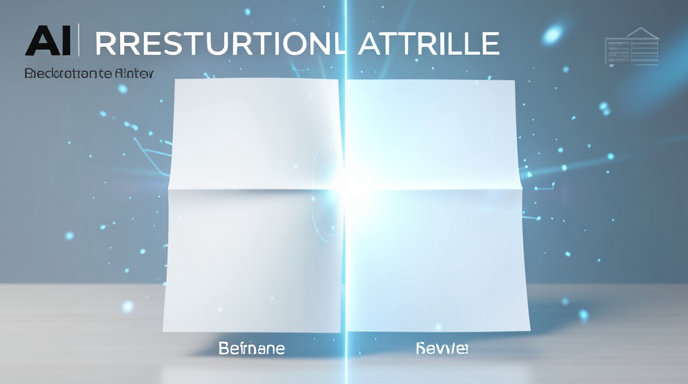
Scanned images from old documents, books, or photos often carry the scars of time—prominent fold lines, creases, and shadows that distort readability and aesthetics. Whether you're digitizing family archives, restoring historical papers, or prepping scans for professional use, these imperfections can ruin the output. Enter AI-powered restoration: advanced tools that intelligently detect and erase fold lines while preserving critical elements like text sharpness, paper texture, and overall document clarity. This guide dives deep into how AI achieves this magic, walks you through practical workflows, tackles common challenges like creases and shadows, and shares pro tips for seamless, natural-looking results.
Understanding Fold Lines in Scanned Images and AI's Role
Fold lines appear on scans as dark streaks, distortions, or shadowy artifacts caused by physical creases in paper during scanning. Unlike simple blemishes, they warp the underlying content—text might blur along the line, textures get muddied, and shadows create uneven lighting. Traditional editing software like Photoshop demands manual labor with tools like the Clone Stamp or Healing Brush, which is time-intensive and prone to inconsistencies.
AI flips the script by using machine learning models trained on vast datasets of damaged and pristine images. These systems employ computer vision to:
Detect damage patterns: Neural networks identify fold lines by analyzing pixel gradients, edges, and distortions. For instance, they distinguish a crease (a linear discontinuity in texture) from actual content like handwriting.
Inpaint missing areas: AI predicts and reconstructs pixels along the fold using surrounding context. It samples nearby paper grain, color, and text patterns to "fill" the gap seamlessly.
Preserve clarity: Specialized algorithms maintain text legibility by enhancing edges and contrast without over-smoothing. Texture preservation ensures the restored scan mimics the original paper's subtle variations, avoiding a plastic, artificial look.
Tools like FlexClip's AI Old Photo Restoration, UncrumpleAI, and iScanner's Edges Restore leverage these techniques, processing scans in seconds on-device or cloud-based. The result? A flat, clean document that looks professionally restored, not digitally altered.
Step-by-Step Workflows for AI Fold Line Removal
Restoring fold lines starts with preparation and ends with refinement. Here's a practical workflow using top AI tools, adaptable to documents, photos, or mixed media.
Step 1: Optimal Scanning Setup to Minimize Initial Damage
AI works best on high-quality inputs. Poor scans amplify issues.
Use a flatbed scanner or phone app with good lighting. Position the document flat under even, diffuse light (avoid glare from overhead lamps).
For books or curled paper, use weights or anti-Newton ring glass to flatten creases pre-scan.
Capture at 300-600 DPI in TIFF or PNG for lossless detail. Apps like iScanner auto-detect edges even on crumpled pages.
Quick tip: Scan in RAW or high-bit depth to retain shadow details AI can later enhance.
Step 2: Select and Upload to an AI Tool
Choose based on your needs—free web tools for quick fixes, apps for mobile, or pro software for batches.
Tool | Best For | Key Features | Free Tier?
------|----------|--------------|------------
FlexClip AI Old Photo Restoration | Photos & docs with creases | Brush over folds, AI inpainting, minimal edge distortion, colorization bonus | Yes, limited exports
UncrumpleAI | Crumpled/wrinkled docs | Auto-smooths entire page, supports PDF/JPG/TIFF | Yes
iScanner Edges Restore | Mobile document scans | On-device AI for folds/tears/staples, dewarps in-app | Yes, with premium upgrades
Pixelcut AI Scanned Document Cleanup | Text-heavy pages | Prompt-based removal (e.g., "erase fold shadows"), auto-straighten | Free with watermarks
Unified AI Hub Photo Restorer | Heavy damage (tears + folds) | Repairs scratches, fading, creases in one go | Free trial
Upload your scan via web or app. Most tools auto-analyze; others let you brush creases for precision.
Step 3: AI Detection and Removal Process
Brush or auto-select: In FlexClip, enable "AI Remove Scratches/Creases," brush the fold (use Erase for oopsies), then hit Generate. UncrumpleAI skips brushing, auto-processing wrinkles via advanced ML.
Handle shadows: Tools like Pixelcut use prompts ("remove fold shadows") to balance lighting. iScanner's dewarping algorithm numerically optimizes geometry, straightening warps pixel-by-pixel.
Batch and refine: Process multiple pages; tweak with upscaling or denoising for faded text.
Export: Download as high-res PDF or image. Preview side-by-side to verify text integrity.
Example workflow with iScanner: Scan a stapled, folded receipt → Open editor → Tap "Edges Restore" → AI rebuilds missing edges → Export clean PDF.
Common Challenges with Creases, Shadows, and AI Solutions
AI isn't foolproof—here's how to navigate pitfalls.
Challenge 1: Deep Creases Disguising Text
Deep folds can obscure letters. AI inpainting hallucinates based on patterns, risking inaccuracies (e.g., "e" becomes "c").
Solutions:
Pre-scan multiple angles or flatten with steam/heat (safely).
Use hybrid tools: iScanner preserves natural folds if minor, only restoring necessities.
Post-AI manual check: Zoom in on text; tools like Adobe Firefly allow targeted edits.
Challenge 2: Shadows and Uneven Lighting from Folds
Folds cast dynamic shadows, skewing OCR or readability.
Solutions:
Pixelcut's lighting correction evens exposure automatically.
iScanner's geometric dewarping uses optimization to "flatten" distortions, retaining tables/images accurately.
Pro tip: Scan on a black background for better edge detection; AI distinguishes paper from shadows.
Challenge 3: Texture Loss and Over-Smoothing
AI might erase paper grain, making scans look "too perfect."
Solutions:
FlexClip minimizes distortion for natural results.
Unified AI Hub targets specific damages (creases without blanket smoothing).
Dial back strength sliders if available; upscale post-restoration to recover detail.
Challenge 4: Complex Backgrounds or Mixed Content
Cluttered desks or photos with people complicate detection.
Solutions:
iScanner handles "fingers blocking paper" via neural networks.
Crop pre-upload; use Piktochart's AI Image Restorer for photo-docs.
Pro Tips for Natural-Looking Restoration Results
Layer treatments: Remove creases first, then colorize/sharpen. FlexClip bundles these seamlessly.
Compare originals: Always A/B test—AI predicts likelihoods, not originals. For archival work, note changes.
Batch efficiency: Tools like Pixelcut process folders; combine with OCR apps post-restoration.
Mobile vs. Desktop: Phone apps (iScanner) for speed; web tools (UncrumpleAI) for bulk.
Avoid over-reliance: For legal/historical docs, pair AI with manual retouching in Photoshop—scan high-res first.
Future-proof: As of 2026, models improve rapidly; test free tiers before committing.
With these workflows, your damaged scans transform into pristine assets effortlessly.
Restore Folded Scans Faster with AI4Chat
If your scanned image is marred by fold lines, AI4Chat helps you clean it up without starting from scratch. Use AI Image Editor to improve the scan’s appearance with resizing, compression, and upscaling, which can help make damaged areas less distracting. Then use AI Chat with Files and Images to upload the scan and ask for guided suggestions on the best restoration approach.
Turn a Damaged Scan into a Cleaner, Usable Image
When fold lines break up text, blur details, or make an old document look unprofessional, AI4Chat gives you practical tools to work on the image directly and evaluate the result as you go. You can:
- Upload the scanned image and get help analyzing the fold damage.
- Edit the image to improve clarity and reduce the visual impact of the crease.
- Upscale or compress the scan for cleaner sharing, archiving, or reprinting.
Ask the AI What to Fix Next
For scans with stubborn fold lines, AI4Chat’s AI Chat with Files and Images lets you work interactively instead of guessing. You can ask what parts of the image are most affected, whether text is still readable, and what improvement step to try next. This makes it easier to restore old documents, receipts, letters, or photos with more confidence and less trial and error.
Conclusion
Removing fold lines from scanned images is no longer just a manual retouching task. With AI-powered restoration tools, you can detect creases, reduce shadows, recover text clarity, and preserve the natural look of paper far more efficiently than traditional editing alone. The best results come from combining good scanning habits with the right AI workflow and a careful final review.
Whether you're restoring family archives, cleaning up receipts, or preparing documents for professional use, the process is now faster, more accessible, and more reliable. By choosing the right tool and refining the output thoughtfully, you can turn damaged scans into clean, readable, and polished images that are ready to share, store, or print.