Introduction
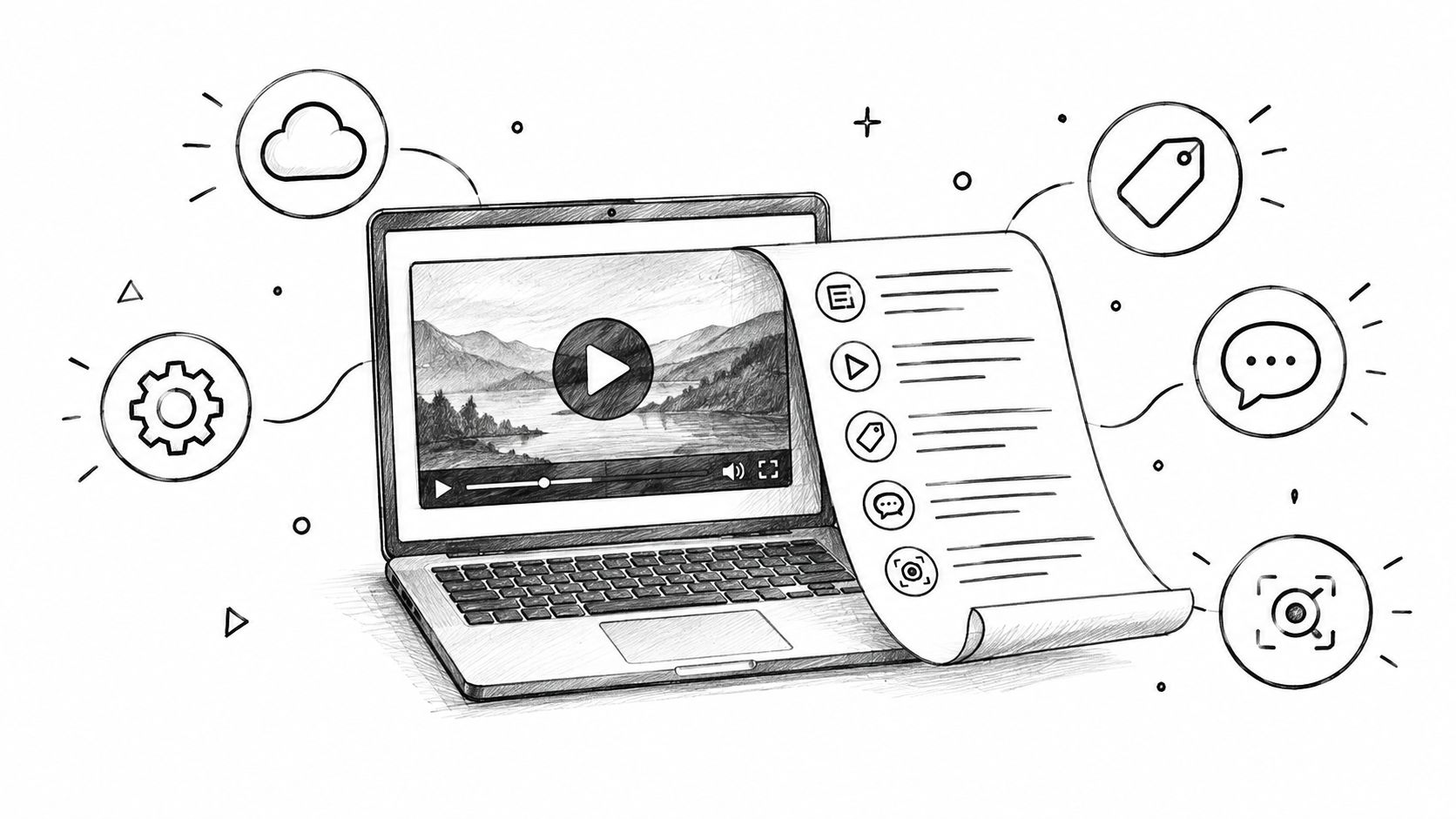
Can ChatGPT analyze videos? Not directly in the way a video-specific model can: standard ChatGPT is primarily a text model, so it cannot natively “watch” an MP4/MOV file and understand motion, timing, or visual changes across the full clip on its own. What it can do very well is analyze video indirectly through transcripts, metadata, screenshots, and other structured inputs, and it can analyze individual images when multimodal/image input is available.
Can ChatGPT Analyze Videos? What It Can Do, What It Can’t, and How to Use It
The short answer
ChatGPT is useful for video analysis workflows, but it is not a true video-understanding system by default. In practice, it can summarize what a video says, help interpret screenshots or key frames, extract themes from a transcript, and turn raw video material into notes, outlines, or reports.
The key distinction is this:
- Text understanding: strong
- Image understanding: available in multimodal versions that accept images
- Video understanding: not native; usually requires external tools to convert video into text, images, or metadata first
What “analyzing a video” actually means
People use “video analysis” to mean several different things, and ChatGPT does not handle all of them equally well.
A useful breakdown is:
- Transcript analysis: understanding what was said
- Frame analysis: interpreting selected screenshots or still images
- Metadata analysis: using title, description, tags, upload date, and similar context
- Temporal analysis: understanding how events change over time in the video
- Audio analysis: interpreting speech, music, sound effects, or tone from the soundtrack
ChatGPT is strongest with the first three and weakest with the last two unless you convert audio into text and video into frames first.
What ChatGPT can do with video content
1. Summarize a transcript
If you provide the transcript of a video, ChatGPT can summarize it, shorten it into bullet points, pull out key claims, or rewrite it for a different audience. This is the most practical and reliable workflow because it uses ChatGPT’s core strength: language understanding.
Useful tasks include:
- concise summaries
- detailed notes
- chapter-by-chapter breakdowns
- key takeaways
- action items
- audience-friendly rewrites
- translations
- email or blog repurposing
2. Analyze key ideas, structure, and tone
With a transcript, ChatGPT can identify the video’s main argument, rhetorical style, persuasion tactics, or likely audience. This is especially helpful for:
- lectures
- interviews
- podcasts
- webinars
- product demos
- tutorials
- panel discussions
It can also compare different videos if you give it multiple transcripts or summaries.
3. Work with screenshots or key frames
In multimodal setups that accept images, ChatGPT can analyze individual frames or screenshots from a video. That means it can help describe:
- what is visible on screen
- charts or slides
- interface elements
- objects in a scene
- text in a frame
- visual layout and design
However, a still frame does not equal a video. A screenshot can show what exists at one moment, but it does not preserve movement, timing, causality, or sequence across the clip.
4. Use metadata to infer context
Even without the video itself, ChatGPT can work with metadata such as:
- title
- description
- tags
- upload date
- creator/channel name
- chapter markers
- comments, if copied in manually
This is useful for getting a quick contextual read, but it cannot replace actual content analysis.
What ChatGPT can’t do
1. It cannot natively “watch” a video file
Standard ChatGPT cannot directly open a video file and understand the footage in its raw form. In other words, you cannot usually upload an MP4 and expect it to independently decode the visual timeline, motion, cuts, or scene changes the way a dedicated video model might.
2. It cannot reliably infer visual events across time from a single input
A video is not just a sequence of images; it is a sequence of images over time. ChatGPT can look at still images, but without a frame-by-frame pipeline it cannot truly understand:
- how one scene transitions into another
- how long an action lasts
- whether an event happened before or after another one
- whether an object moved, disappeared, or changed state over time
3. It cannot directly process audio unless it is transcribed first
If the important information is spoken, sung, or embedded in sound design, ChatGPT needs a transcript or a separate audio-to-text step to analyze it well. Without that, it misses:
- exact wording
- emphasis
- pauses
- speaker changes
- sound cues
- tone that depends on delivery rather than words alone
4. It can miss important details even with transcripts
Transcripts are powerful, but they are incomplete for some kinds of video analysis. They often omit:
- on-screen text
- slide visuals
- gestures
- facial expressions
- visual demonstrations
- charts and diagrams
- nonverbal context
That is why transcript-only analysis works best for language-heavy videos and less well for visual tutorials, product demos, field footage, and cinematic content.
Text vs. image vs. video understanding
A clean way to understand ChatGPT’s limits is to compare the three modes.
Mode | What it handles well | Main limitation
Text | Summaries, Q&A, rewriting, extraction, reasoning over language | Can only use what is written or transcribed
Image | Describing a single frame, reading visible text, interpreting charts or layouts | No native sense of motion or sequence
Video | Only indirectly, by converting it into text or sampled frames | No full native understanding of time-based visual content
This is why ChatGPT is often best described as a language layer for video workflows, not as a direct video engine.
Best practical workflows for analyzing video with ChatGPT
Workflow 1: Transcript-first analysis
This is the simplest and most reliable method.
1. Extract the transcript from the video using a transcription tool.
2. Paste the transcript into ChatGPT.
3. Ask for a summary, outline, highlights, or detailed analysis.
Good prompt examples:
- “Summarize this transcript in 8 bullet points.”
- “What are the top 5 claims in this video?”
- “Turn this transcript into meeting notes.”
- “Identify the speaker’s main argument and evidence.”
- “Rewrite this transcript for a LinkedIn post.”
This approach works especially well for videos with clear speech and limited visual dependence.
Workflow 2: Transcript plus screenshots
If the video includes slides, charts, UI screens, or important visual moments, combine the transcript with selected screenshots.
Use this when you need:
- slide-by-slide summaries
- tutorial step extraction
- product walkthrough analysis
- design critique
- visual evidence from demonstrations
A strong workflow is:
1. Pull the transcript.
2. Capture key frames or slides at important moments.
3. Give ChatGPT the transcript and the screenshots together.
4. Ask it to align the narration with the visuals.
This helps compensate for the fact that transcripts do not capture everything on screen.
Workflow 3: Metadata plus transcript
When you want a fast first-pass analysis, combine:
- title
- description
- tags
- transcript
- chapters
This is useful for:
- SEO analysis
- content strategy
- competitive research
- theme extraction
- repurposing content into summaries or outlines
ChatGPT can use these inputs to infer intent, audience, and structure more effectively than transcript alone.
Workflow 4: Frame extraction plus captioning
For more visual content, use a tool that extracts frames from the video, then generate captions for those frames before sending it to ChatGPT.
A practical pipeline looks like this:
1. Extract frames every few seconds or at scene changes.
2. Use an image-capable AI tool to describe each frame.
3. Combine the frame descriptions with timestamps.
4. Feed the combined text into ChatGPT for synthesis.
This is useful when the video contains:
- demonstrations
- physical processes
- scene changes
- visual storytelling
- inspections
- sports clips
- product showcases
The advantage is that ChatGPT can then reason over a structured textual representation of the video rather than the raw file itself.
Workflow 5: Use a specialized transcription or video tool first
Several tools are commonly used to convert video into something ChatGPT can analyze, including transcription services and workflow tools that pull transcripts from links or uploaded files. The general idea is the same:
- let a specialized tool handle the video/audio conversion
- let ChatGPT handle interpretation, synthesis, and rewriting
This division of labor is the most effective way to use ChatGPT for video-related tasks.
What kind of videos are easiest for ChatGPT to help analyze?
ChatGPT is most effective when the video is speech-heavy and information-dense.
Best fits:
- lectures
- interviews
- podcasts
- webinars
- product launches
- tutorials with narration
- conference talks
- educational explainers
Harder cases:
- silent footage
- fast-moving action
- sports clips
- surveillance-style footage
- highly visual art or design content
- videos where meaning depends on facial expression or camera movement
- content with minimal speech and a lot of visual storytelling
Where ChatGPT adds the most value
ChatGPT is not the tool that “sees” the video first. Its value is in what it does after the video has been converted into usable inputs.
It adds value by:
- making transcripts readable
- extracting structure from long content
- finding themes and patterns
- turning scattered notes into organized output
- helping compare multiple videos
- converting video material into content assets
- drafting summaries, scripts, posts, study notes, and reports
For many users, this makes ChatGPT a video analysis assistant rather than a video viewer.
Common mistakes people make
Assuming transcript = full video understanding
A transcript is extremely useful, but it does not capture visuals, timing, or nonverbal meaning.
Assuming screenshots capture the whole video
A still image can describe a moment, not the motion between moments.
Asking vague questions
Questions like “Analyze this video” are too broad unless you specify whether you want:
- a summary
- key claims
- visual analysis
- sentiment
- content repurposing
- audience analysis
- fact extraction
Expecting precise scene-level interpretation without a proper pipeline
If the video matters at the level of action, sequence, or visual change, use frame extraction or a dedicated video tool first.
A practical prompt template for video analysis
Use this structure when sending a transcript or frame notes to ChatGPT:
“Analyze the following video transcript and/or frame descriptions. Please provide:
- a concise summary
- the main points
- any claims or arguments made
- notable visual references
- likely audience
- key questions or gaps
- a suggested title and 5 bullet takeaways”
If you also have screenshots, add:
“Use the screenshots to identify important visual elements that are not present in the transcript.”
This kind of prompt works because it tells ChatGPT exactly what kind of analysis you want rather than asking for an open-ended answer.
A recommended end-to-end workflow for most users
1. Identify the video type: lecture, tutorial, interview, demo, or visual content.
2. Extract the transcript: use a transcription tool if the video has speech.
3. Capture key screenshots: take frames at important moments if visuals matter.
4. Optional: add metadata: title, description, chapters, and upload context.
5. Send the materials to ChatGPT: ask for summary, analysis, or repurposing.
6. Refine with follow-up questions: request deeper analysis, shorter output, or a different format.
This workflow gives you the best mix of speed, accuracy, and flexibility because it matches the tool to the input it handles best.
When you should use a different AI tool
Use a specialized video or multimodal tool when you need:
- direct video file interpretation
- scene detection
- motion analysis
- object tracking
- frame-by-frame understanding
- automatic chaptering from visual changes
- richer audio-visual reasoning
Then use ChatGPT afterward for:
- synthesis
- explanation
- summarization
- rewriting
- extracting insights
- turning the results into useful writing
That pairing is often more effective than trying to force ChatGPT to do everything itself.
A realistic bottom line for users
If your question is “Can ChatGPT analyze videos?” the accurate answer is: yes, but indirectly and with important limits. It is excellent for transcript-based analysis, screenshot interpretation, and turning video content into structured text, but it is not a native end-to-end video understanding system.
For the best results, treat ChatGPT as the analysis and synthesis layer in a workflow that starts with transcription, frame extraction, or other video-processing tools.
Introduction
If you’re reading about whether ChatGPT can analyze videos, AI4Chat gives you a practical way to work with video content without guessing. Instead of trying to extract insights manually, you can upload supporting files, inspect visual details, and use a stronger chat workflow to ask exact questions about what’s on screen, what’s said, and what matters most.
Use the right tools for video-related analysis
AI4Chat is especially useful when your goal is to understand a video more clearly, summarize its meaning, or pull out key information for research, content creation, or fact-checking. These features fit that workflow directly:
- AI Chat with Files and Images — upload frames, screenshots, transcripts, or related files and ask detailed questions based on the content.
- AI Image to Text with Context — extract visible text and interpret visual elements from video stills, thumbnails, slides, or scenes.
- Browser Extension — chat with YouTube and other websites, making it easier to analyze online video content while you browse.
Make your analysis clearer, faster, and easier to reuse
Once you have the video information, AI4Chat helps you turn it into something usable. You can refine your prompts with the Magic Prompt Enhancer, then use AI Chat to organize observations, compare interpretations, and generate clean summaries or follow-up questions. That means less time rewatching clips and more time getting actionable takeaways.
Whether you’re evaluating a tutorial, summarizing a lecture, or checking visual evidence in a clip, AI4Chat helps you move from “Can ChatGPT analyze videos?” to “Here’s exactly what this video shows.”
Conclusion
ChatGPT can be a very effective assistant for video work, but mainly when the video has been translated into text, screenshots, metadata, or other structured inputs. It shines at summarizing transcripts, interpreting key frames, extracting themes, and turning raw material into clear notes or reusable content.
For anything that depends on motion, timing, scene progression, or rich audio-visual understanding, a dedicated video tool is the better first step. The most reliable approach is to use ChatGPT as the synthesis layer after transcription or frame extraction, so you get both efficiency and accuracy.