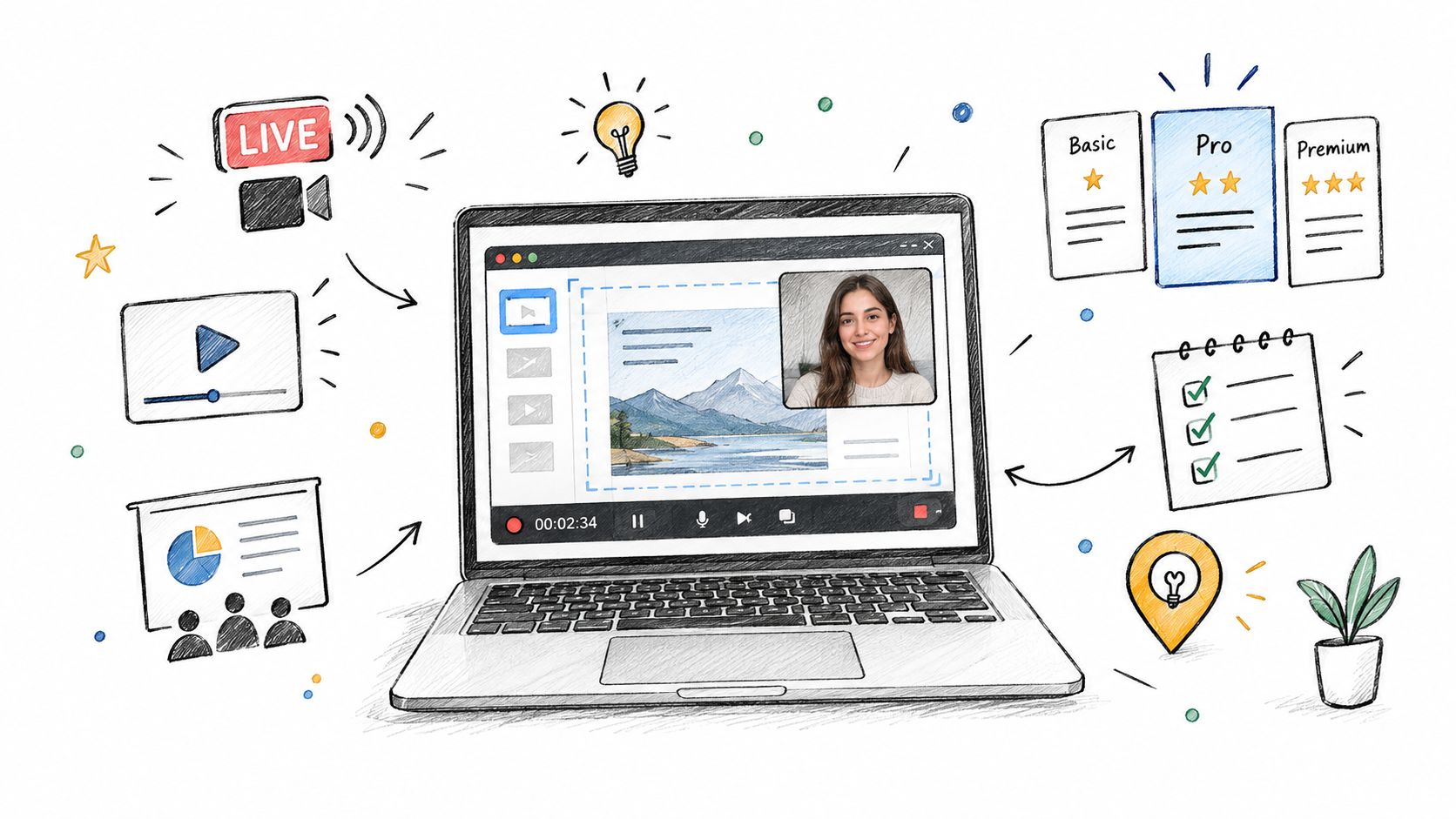
The popular advice on a screen recorder with webcam is too simple. People act as if one tool should be “best,” but a streamer, a Chromebook teacher, a software trainer, and a presenter are solving different jobs, and they need different balances of camera control, editing depth, hosting, audio routing, and setup speed. The core question is not which app has the longest feature list, it's which one fits the recording job you repeat most often.
That matters because screen recording has become a substantial software category, not a niche utility. One major forecast valued the screen recording software market at USD 2.49 billion in 2025 and projected USD 11.45 billion by 2034 with an 18.48% CAGR from 2025 to 2034, while another estimate put the market at USD 2.10 billion in 2025 and USD 4.62 billion by 2030 with a 17.08% CAGR (Fortune Business Insights). A separate model estimated the related screen recorder market at US$1.0 billion in 2024 rising to US$1.7 billion by 2030 with an 8.1% CAGR, and explicitly described these tools as capturing screen activity, system audio, and webcam input (MarketResearch.com). That growth explains why webcam overlays, sharing links, transcripts, and polished exports now matter so much.
A practical way to choose is to match the tool to the job. Fast sharing, streaming control, teaching, documenting, editing, and presenting all reward different workflows, so the best screen recorder with webcam for you is the one that creates the least friction in your actual routine. The comparisons below weigh overlay control, editing depth, sharing, platform fit, and workflow friction, then end with a simple decision guide.
Table of Contents
- 1. ScreenSnap Pro
- 2. Loom
- 3. ScreenPal
- 4. OBS Studio
- 5. Camtasia
- 6. Snagit
- 7. Bandicam
- 8. Movavi Screen Recorder
- 9. Screencastify
- 10. Microsoft Clipchamp
- 11. Descript
- Top 11 Screen Recorder + Webcam Comparison
- Choose the Workflow You Can Repeat
1. ScreenSnap Pro
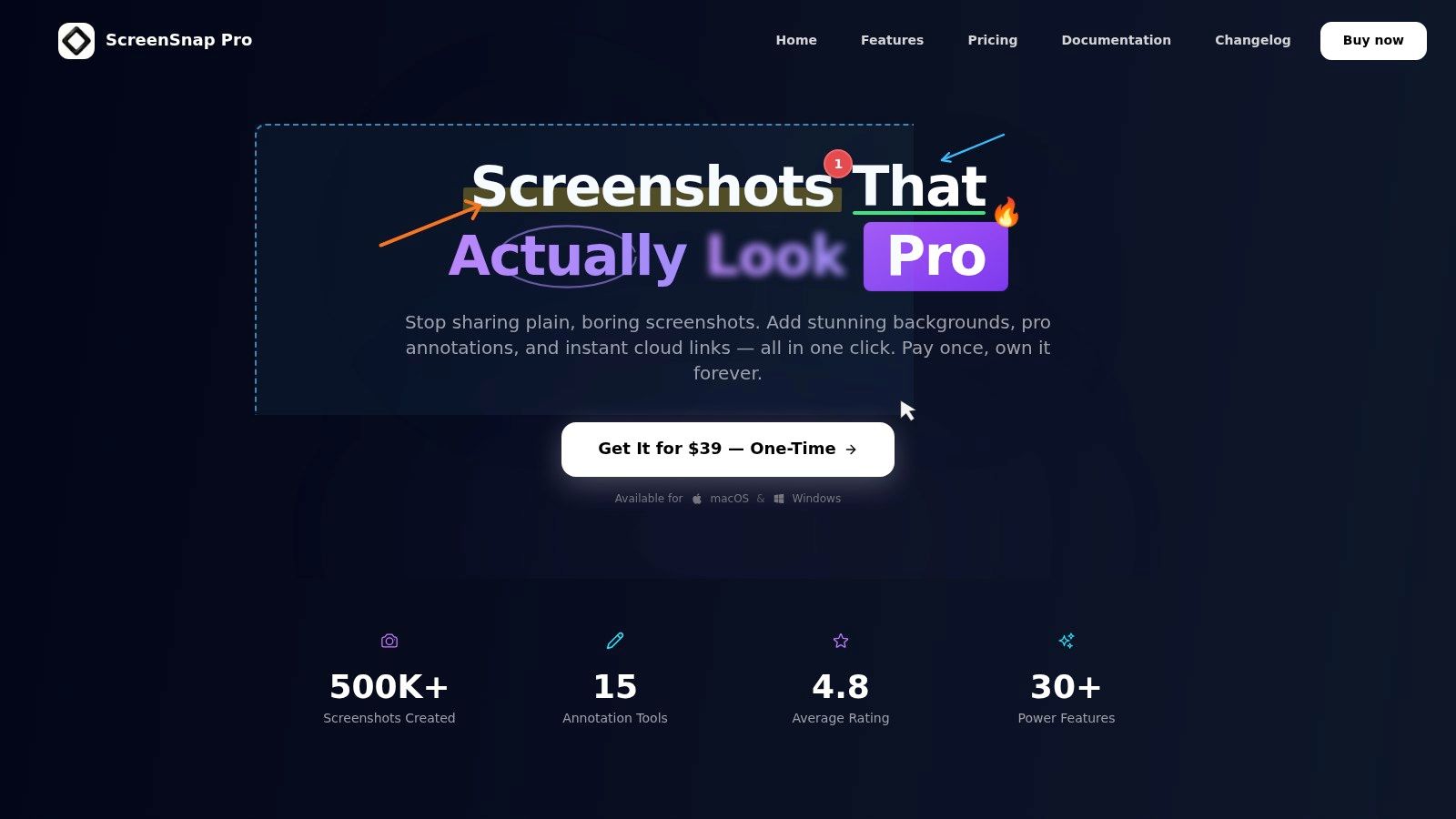
ScreenSnap Pro stands out because it tries to compress the whole capture workflow into one local-first app. It handles screenshots, screen recording, webcam, and quick sharing without forcing you into a separate editor for every small job, and that matters if your day moves between bug reports, tutorials, and quick walkthroughs. The product page at ScreenSnap Pro makes its scope clear, and that scope is narrower and more useful than a bloated all-purpose suite.
Why it fits quick documentation and presenter-led recording
For sharing quickly, ScreenSnap Pro is strongest when you want to capture, annotate, and send without changing tools. It supports area, window, and full-screen screenshots, webcam and system audio recording, and exports as video or GIF, which gives you flexibility when the recipient only needs a short clip. The Quick Access Overlay is the part that really changes workflow, because it lets you view, edit, drag, or share the latest capture without leaving the task you were already doing.
Its annotation layer is unusually practical for a recorder. With 15 annotation tools, plus OCR for copied text, website capture, and 500+ gradient backgrounds, it's built for people who need the recording to look intentional the moment it's created. The timeline-based zoom-ins also help presenter-style recordings feel clearer without sending you into a heavier editor.
Where the limits show up
ScreenSnap Pro is a good fit if your priority is capture, light editing, and fast handoff. It's less compelling if you need advanced non-linear video editing or a scrolling capture workflow, because its strengths are deliberately focused rather than endless. That's a tradeoff I like in this category, because it lowers workflow friction and makes the tool easier to trust.
Practical rule: choose ScreenSnap Pro when your camera overlay is part of a larger documentation workflow, not when you're trying to build a full video production stack.
It's also useful that the app works fully offline when cloud features aren't used. That makes it more comfortable for teams that want local storage by default, but still want optional signed links for sharing when needed.
2. Loom
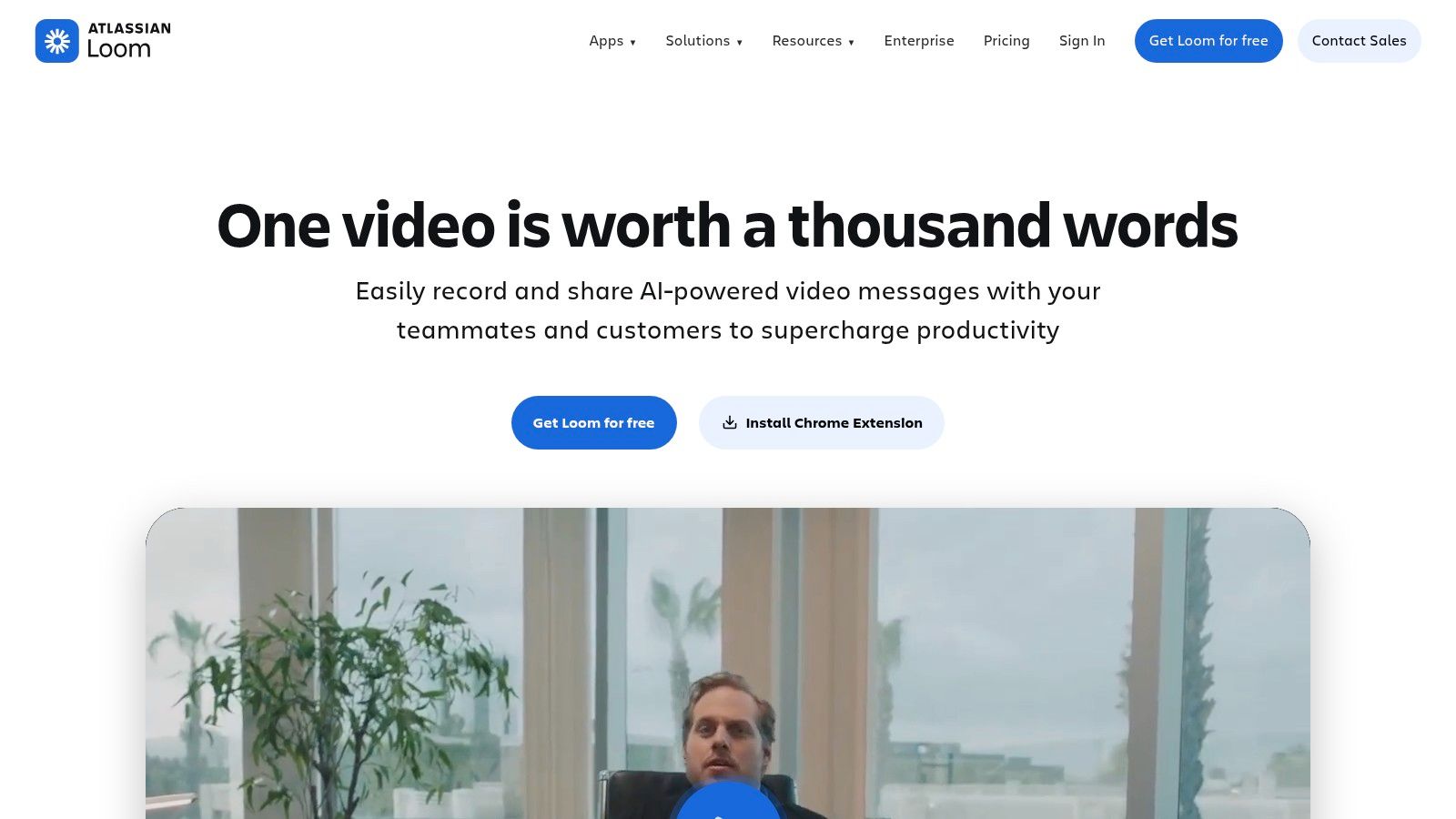
For anyone whose recording job ends with a link in a chat window, Loom removes almost every step between capture and send. It records screen plus camera, then places the result in a cloud workflow built for instant sharing, comments, and viewer replies. That makes it a strong fit for product demos, customer updates, and internal handoffs where speed matters more than local file management.
Loom works best for async communication. The viewer page, transcripts, comments, and simple trimming turn a recording into something closer to a message thread than a video file. That matters in sales enablement and team updates, where the recipient may only need to skim a section, reply, or forward it to someone else. In practice, Loom suits jobs where the recording is part of distribution, not a project that needs heavy editing afterward.
Its limits show up when the workflow needs more control. If the content is sensitive, or if a team prefers local-first storage, the auto-upload model can feel less comfortable than a recorder that stays on device. The free plan's time limits can also interrupt longer tutorials, so Loom fits concise walkthroughs better than dense lesson recordings.
Loom suits teams that care more about distribution than post-production.
The broader market explains why this model works. Combined screen-and-camera recording has become normal enough that Wistia's cited finding points to that habit, and Loom is built around it. A closer look at AI4Chat's discussion of Loom translation and alternatives is useful if you want to judge where Loom stops and a more editing-heavy tool takes over.
3. ScreenPal
ScreenPal is the balanced choice for education, team training, and everyday explainers. It doesn't try to be a full post-production suite, but it does give you enough webcam control, editing, and hosting to keep one tool at the center of the workflow. That makes it especially strong when the same person records, trims, captions, and shares the video.
The webcam side matters here. Background blur and replacement make the camera overlay easier to use in classrooms, staff training, and creator videos where the presenter's environment isn't always camera-ready. Combined with built-in editing, hosting, and player customization, the app covers the whole path from capture to playback without asking users to stitch together several services.
ScreenPal's other advantage is platform reach. The consistent UI across Windows, macOS, Chromebook, iOS, and Android gives it a broad fit for mixed-device environments. That's important for schools and teams because the person making the recording isn't always on the same device every week.
The tradeoff is depth. The editor is capable, but it isn't a full professional NLE, so users who want complex motion work or advanced editing will eventually outgrow it. Advanced features also sit higher in the plan stack, which means the sweet spot is usually the middle ground, not the cheapest tier.
ScreenPal works best when the video needs to be clear, not cinematic.
For teaching and onboarding, that's often exactly right. The tool gives you enough control to keep explanations clean, while avoiding the overhead that slows down more complex editors. If your job is to record, lightly polish, host, and move on, ScreenPal is one of the most practical picks in this list.
4. OBS Studio
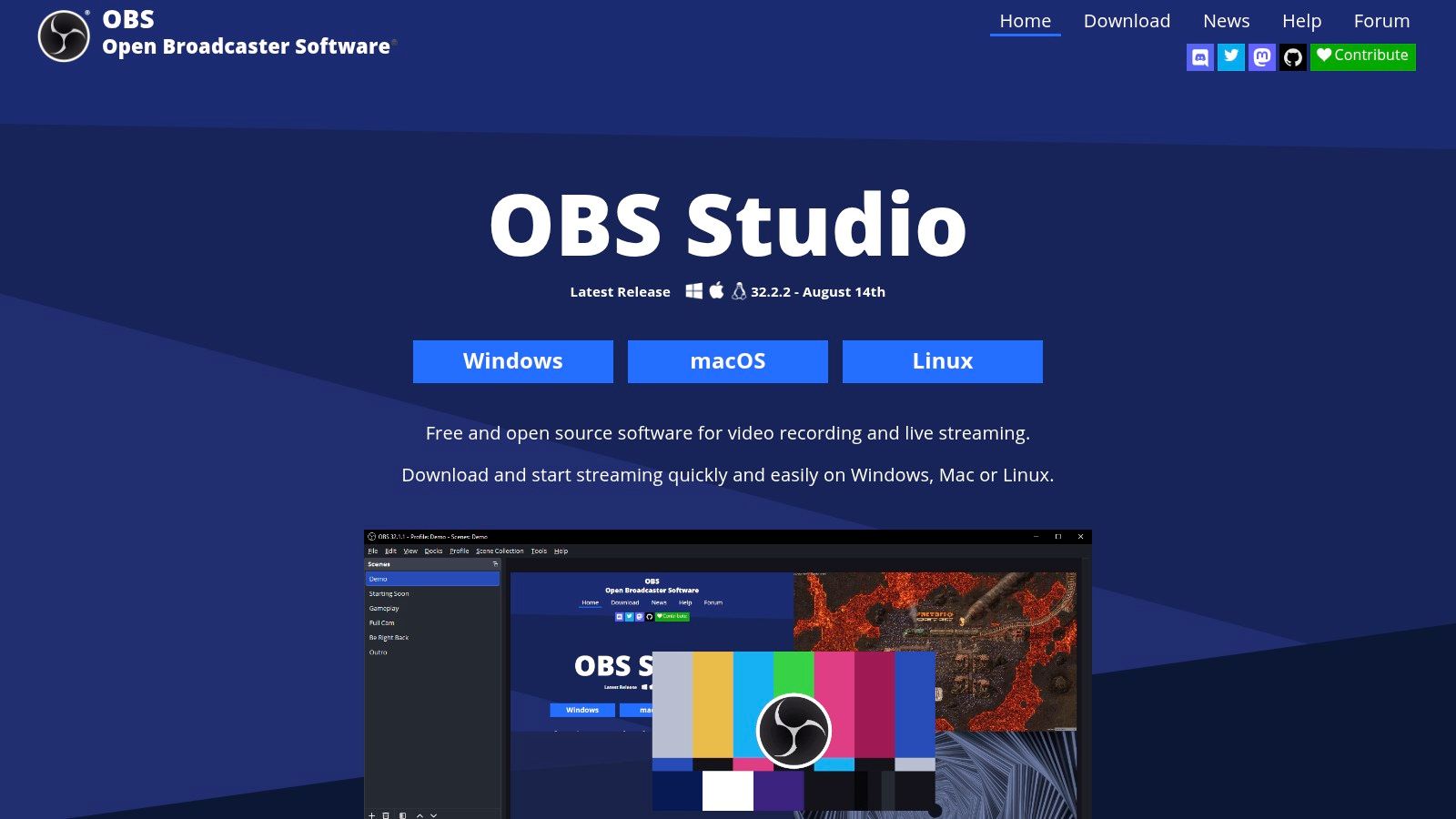
Unlimited scenes and sources are the reason streamers keep coming back to OBS Studio. It lets you combine display capture, app windows, webcams, media, graphics, and audio in ways that cloud recorders usually cannot match. That makes it a strong fit for streamers, technical presenters, and anyone building a webcam overlay inside a larger live or recorded production.
The overlay control is where OBS stands out. You can build picture-in-picture layouts, apply transforms and filters, and route audio for setups that go well beyond a basic presenter bubble. For streaming, that flexibility matters because the screen, camera, mic, and supporting visuals can all be composed before recording starts.
For teaching and documentation, the same control helps with more deliberate scenes, but it also adds setup time. OBS is free and powerful, yet it expects more from the user than one-click cloud tools do. There is no built-in hosted sharing, so output stays local by default, which means you need a separate step if you want links, comments, or browser-based playback.
OBS makes sense when the goal is building an exact scene rather than sending a link quickly. It is also cross-platform, which helps teams standardize around one recorder without tying themselves to a single operating system. The learning curve is the tradeoff for that flexibility.
For creators who care about streaming plus polished capture, OBS remains one of the few screen recorder with webcam options where the webcam is just another source in a customizable production system.
5. Camtasia
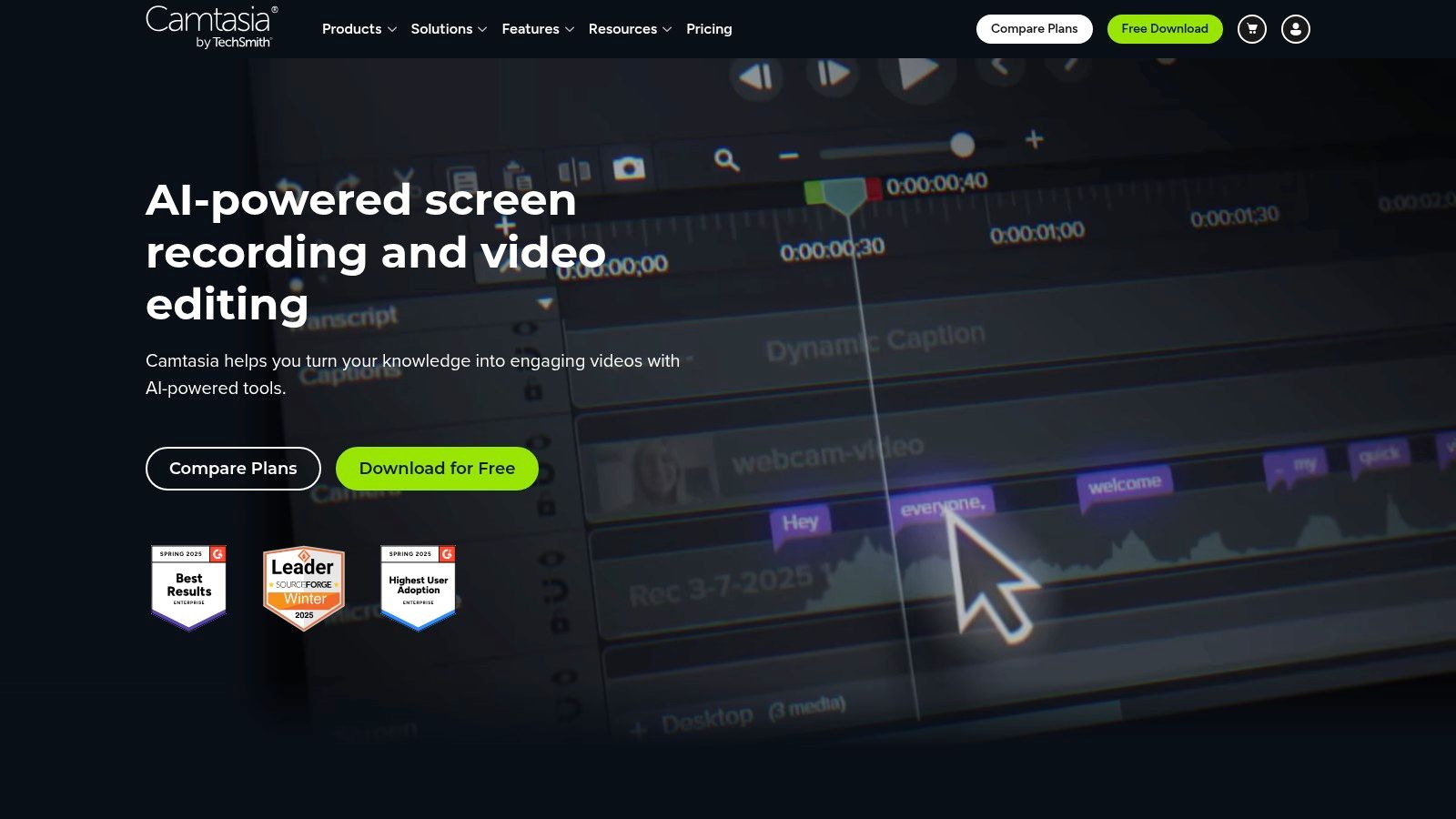
Polished tutorials and course content need an editor as much as a recorder, and Camtasia is built on that premise. It records screen and camera together, then adds a timeline editor with annotations, cursor effects, callouts, quizzes, and templates. The result is a tool aimed at people who treat recording as one step in a longer teaching workflow.
That matters most for teaching and documentation. Camtasia gives you room to fix pacing, trim awkward pauses, and add structure after the fact, which suits scripted or semi-scripted explainers better than a bare-bones recorder. The PowerPoint add-in and template options also help teams keep videos visually consistent when several people are producing the same kind of content.
The tradeoff is friction. Camtasia is heavier than lightweight recorders, and its editing depth asks for more time from the person using it. For internal training libraries or public courses, that cost is often justified. For a quick status update, it is more tool than the job needs.
Use Camtasia when the edit matters as much as the capture.
That approach fits structured demo work as well. The AI4Chat product demo video maker guide is useful if you are deciding how much structure a demo should have before you record it. Camtasia's main strength is that you can finish the story in one application instead of exporting the footage to a separate editor.
6. Snagit
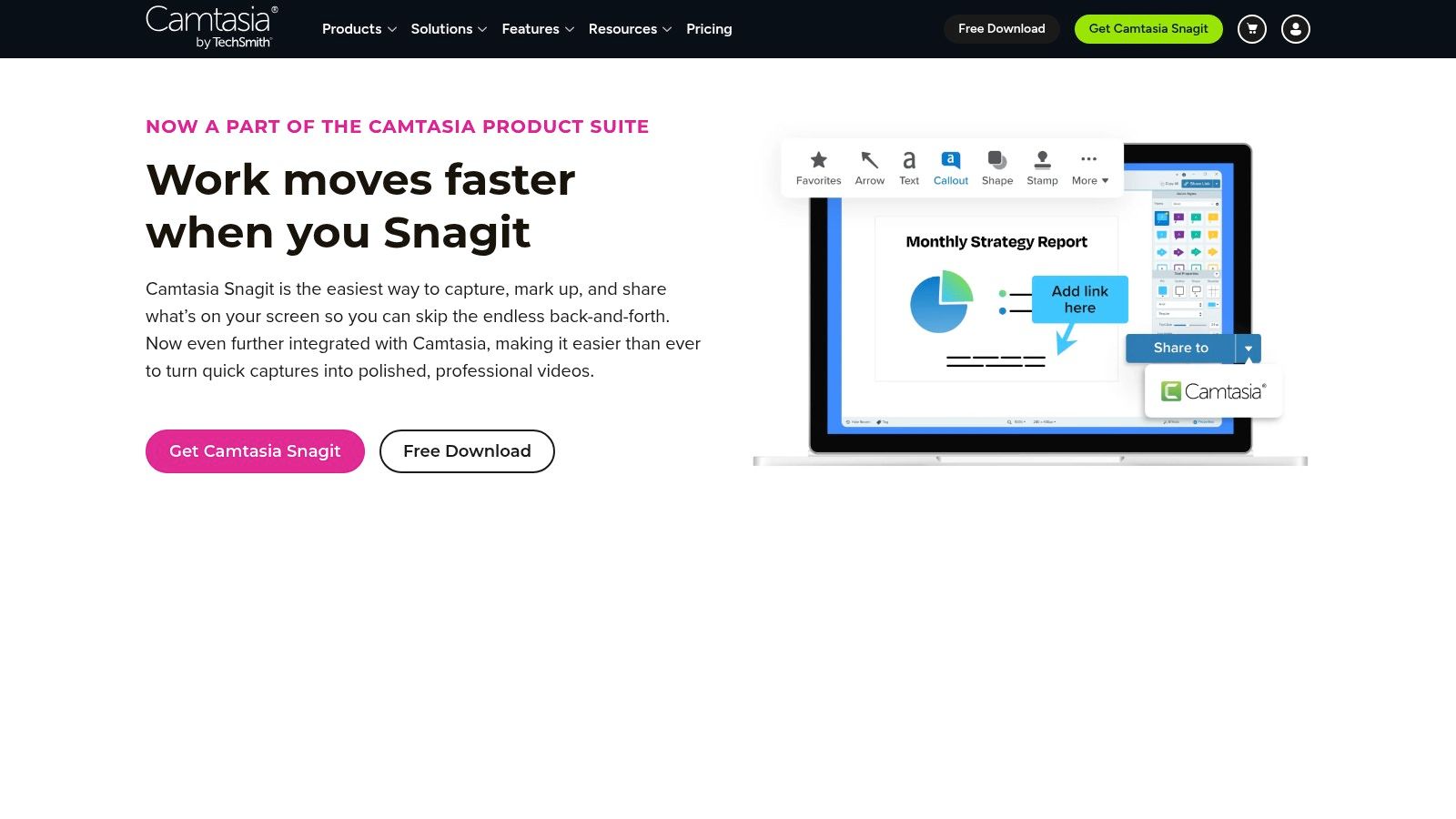
SOPs, bug reports, and short explainers share one requirement, viewers need clarity fast, and Snagit is built for that job. It is a capture tool first, so the webcam overlay, screen drawing, and screenshot markup stay focused on explanation instead of production polish.
That focus suits support teams and internal docs. Snagit lets you move between screenshots and short videos without shifting tools, which keeps process capture quick when you are showing a workflow, reproducing an issue, or adding context to a step-by-step guide. The webcam feed works as a small layer of presence, while the annotation tools do most of the heavy lifting.
The limit appears once the recording needs become more editorial. Snagit's video editing is basic, so awkward pacing, transitions, or more polished presentation work will usually require another editor. The subscription change in 2025 also matters if you are comparing long-term cost against ownership.
For teams that need a repeatable way to record a screen with webcam and explain what happened, Snagit stays easy to adopt. It asks less setup time than a full video suite, and that makes it a stronger fit for small documentation jobs than for finished training content.
7. Bandicam
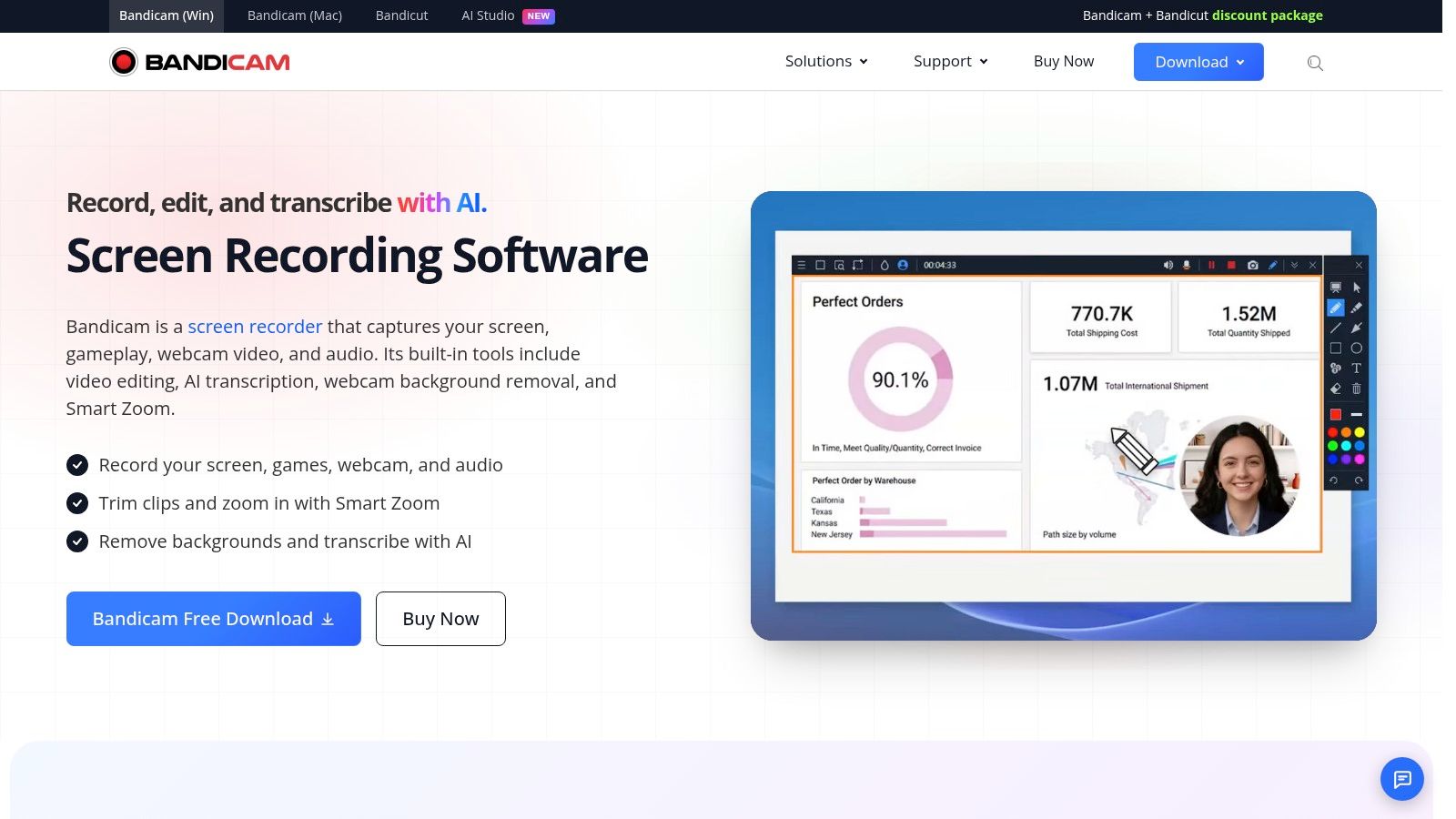
Windows users who record often and care about file size and stability keep landing on Bandicam. It fits tutorial work and gaming captures because it stays light, while still giving you picture-in-picture webcam, position controls, size controls, and chroma key options. The result is enough overlay control to frame a lesson or a playthrough without pushing you into a full editing suite.
Its strongest use case is repetitive recording. Hardware-accelerated capture and smaller files help when you save a lot of short clips or record high-FPS sessions, since storage and playback load stay manageable. Selected-area capture also adds discipline, because you can isolate one part of the screen instead of grabbing everything by default.
Bandicam fits quick sharing, streaming prep, and technical documentation better than finished editing. It is strongest as a recorder that feeds a separate editor, since the built-in post-production tools stay limited. It also feels more natural on Windows than on macOS, where the experience is newer and less established.
For presenters who only need the webcam overlay to stay steady and predictable, that tradeoff works. Bandicam favors clean footage and low overhead over polish, which suits workflows that repeat the same capture pattern again and again.
8. Movavi Screen Recorder
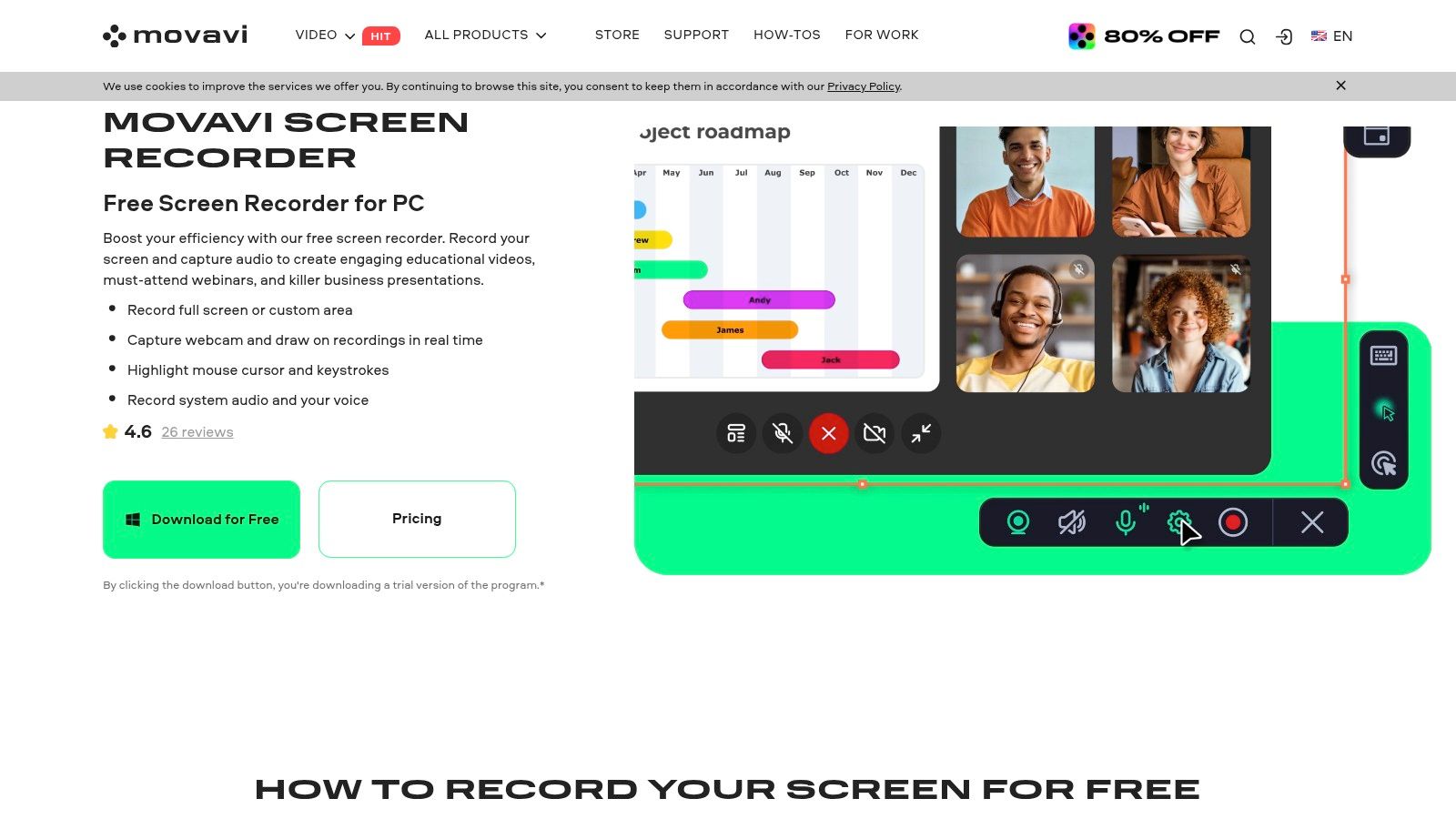
Not every recording job needs a power-user interface, and Movavi Screen Recorder is built for the jobs that do not. It records screen and webcam together, adds scheduled captures and cursor effects, and keeps basic editing close at hand. That makes it practical for quick YouTube tutorials and business explainers, where setup time matters more than a dense feature set.
Its appeal is workflow friction, or the lack of it. New users can get a first pass recorded without learning a timeline-heavy editor, then trim and export with only a few decisions. For teams that want more polish later, it pairs naturally with Movavi Video Editor.
The tradeoff is clear. The built-in editor stays fairly basic unless you move into the larger bundle, so Movavi works best as a recorder first and an editor second. Some advanced tools also sit behind higher bundles, which can change the value if your workflow keeps growing beyond simple captures.
For business explainers and lightweight tutorials, the webcam overlay is handled in a low-drama way, it appears, stays in place, and does not demand much configuration. That suits presenters who care about getting a clean recording out quickly, then moving on to the next task.
9. Screencastify
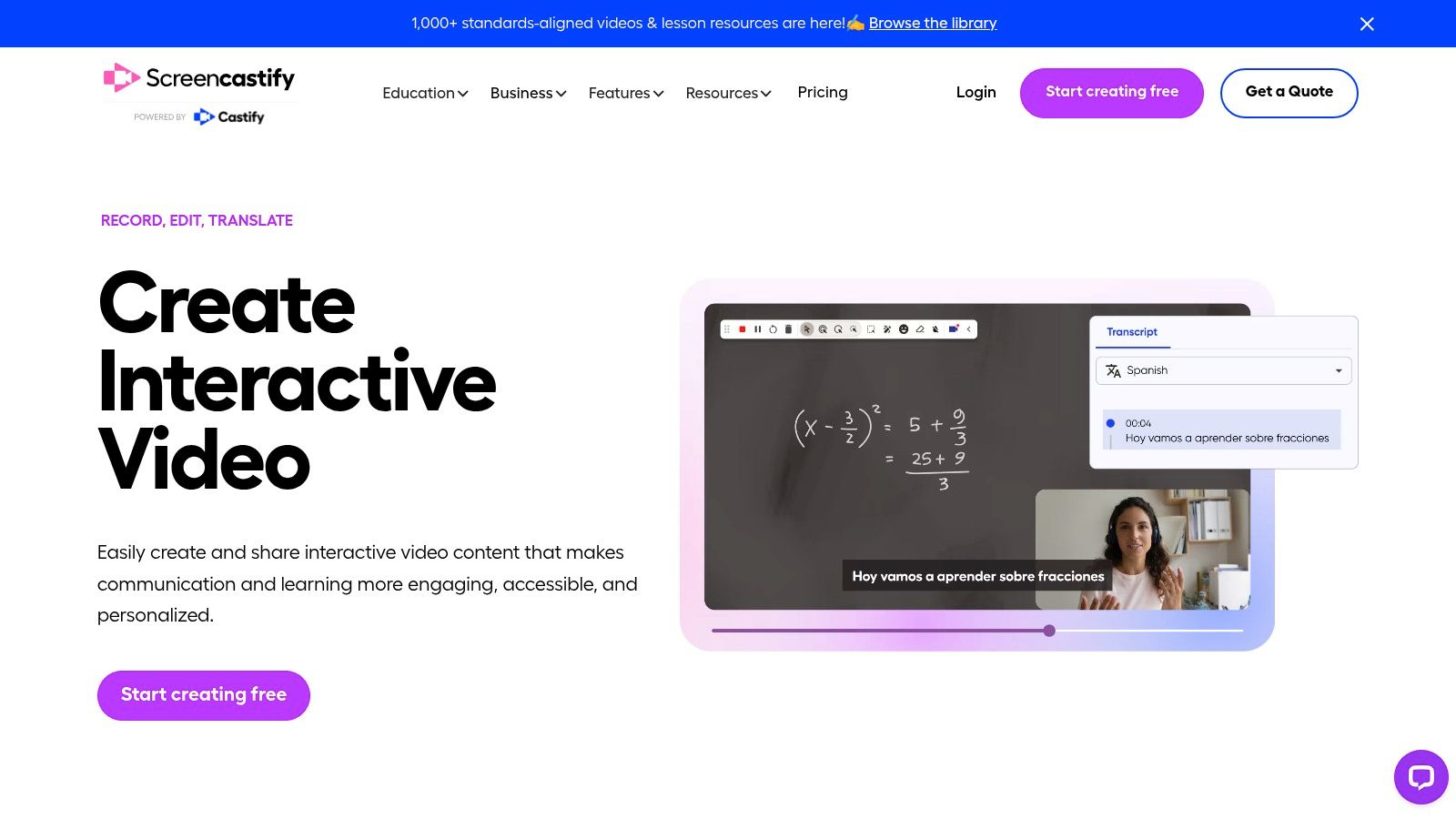
For teams that already live in Google Drive and Chrome, Screencastify adds almost no new tooling to learn. It records browser tabs, desktops, and webcam together, then saves directly to Drive and can publish to YouTube with little setup. That makes it a practical fit for education, onboarding, and other jobs where speed matters more than a heavy production stack.
Its real strength is workflow fit. If the task is to capture a lesson, a short walkthrough, or a quick internal update, Screencastify keeps the process short: record, trim, share. The simple editor, plus interactive questions in education plans, also suits teachers and trainers who need engagement without moving into a more complex editor.
The tradeoff shows up as soon as the recording job gets more demanding. Chrome-first workflows work well for tab-based demos, but they are weaker for multi-app sessions and more polished editing. Branding options stay basic too, so it is a better match for functional videos than designed deliverables.
For Chromebook classrooms and simple onboarding clips, platform fit matters more than raw feature depth. Screencastify gives that fit, along with direct Google Drive saving and classroom integrations. When the goal is to capture, trim, and share with minimal friction, it does the job cleanly.
10. Microsoft Clipchamp
If your files already live in OneDrive and your team works in Microsoft 365, Clipchamp turns that existing stack into a recording workflow. It captures screen and camera together, then adds templates, captions, brand kits, and social exports in a browser editor. For quick sharing and internal updates, that setup keeps the job simple.
It fits real recording tasks best when speed matters more than deep control. OneDrive and Microsoft 365 connections reduce friction for teams already storing media in Microsoft tools, and eligible plans can include 4K export. That helps if the goal is to move from capture to publish without shifting files between systems.
Its limits show up in more demanding workflows. The standalone value is weaker outside Microsoft's environment, and browser performance still depends on the device and tab load. Overlay control and editing depth are good enough for polished office clips, but they are not built for detailed production work.
Clipchamp suits teams that need a screen recorder with webcam for teaching, presenting, or documenting inside a familiar corporate stack. It is less flexible than OBS or Camtasia, but for Microsoft-centered workflows, that tradeoff keeps the process moving.
11. Descript
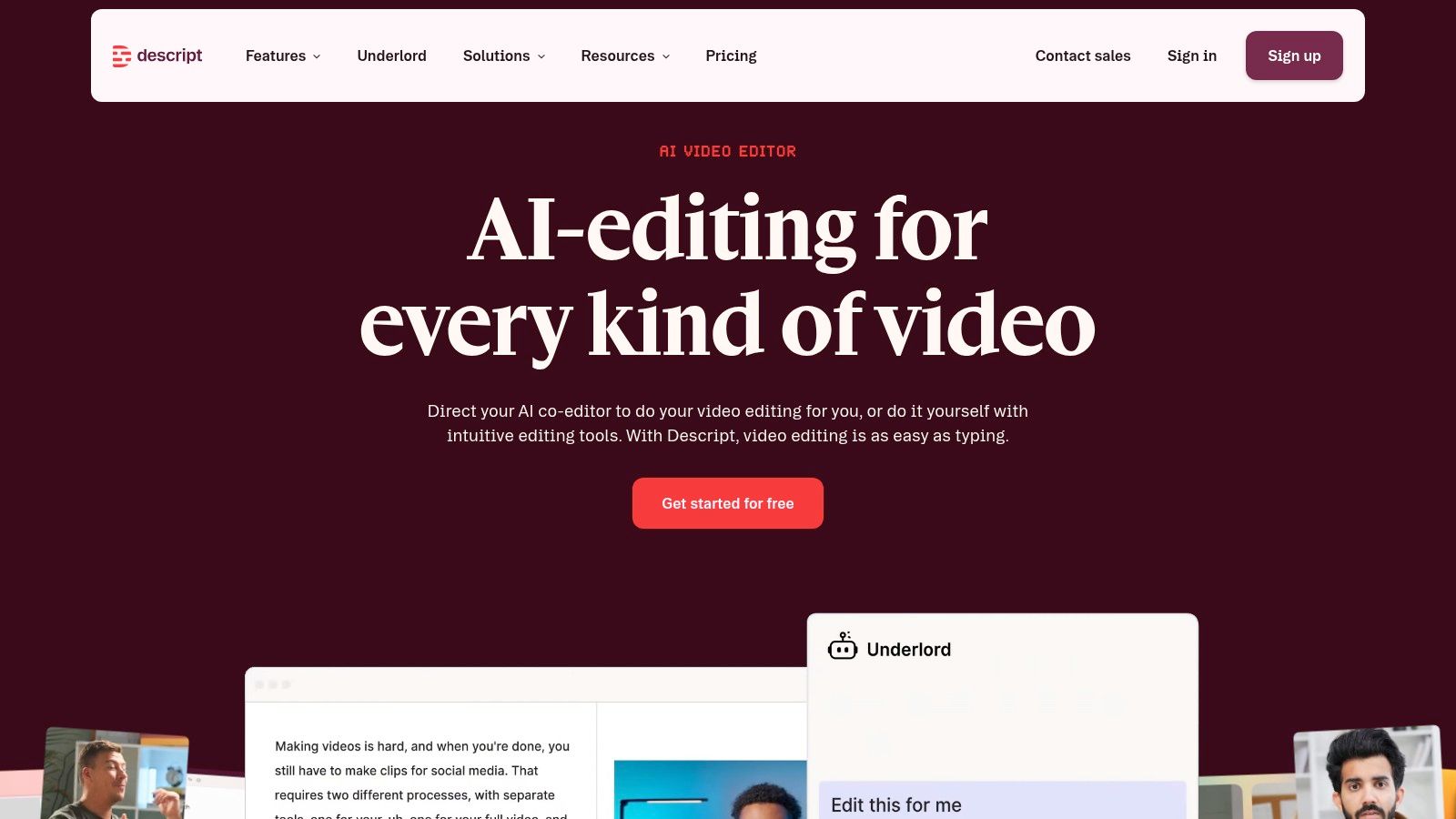
Descript is the choice for people who want to edit talking videos like text. It records screen and webcam, then lets you cut by deleting words or sentences in the transcript. That is a very different editing model from timeline-first tools, and for the right user it feels dramatically faster.
The strength is polished talk-through content. Captions, templates, stock assets, speaker detection, and AI cleanup tools help clean up explanations without making you drag clips around a timeline all afternoon. That makes it a strong fit for tutorials, explainers, and marketing videos where the spoken script is the center of the work.
The limitation is that the workflow is transcript-centric. If you're used to traditional video editing, it can take a minute to adapt, and plan-based AI or transcription usage may be metered. That doesn't make it worse, it just makes it specialized.
Descript also deserves attention from anyone comparing content workflows across tools. The AI4Chat guide to AI UGC video editors is useful if your goal is to move from rough recorded footage to a cleaner marketing-style output. Descript is one of the few tools here that turns the transcript itself into the editing surface, which can save a lot of time when the recording is mostly narration.
Top 11 Screen Recorder + Webcam Comparison
| Product | Core features | UX & Quality ★ | Price / Value 💰 | Target 👥 | Standout ✨🏆 |
|---|---|---|---|---|---|
| ScreenSnap Pro | Screenshots, screen+webcam recording, OCR, annotations, 500+ backgrounds, quick links | ★★★★☆ Fast, offline-first, cross‑platform | 💰 One‑time $39 (lifetime updates) | 👥 Creators, support docs, product teams | ✨ 500+ curated backgrounds, timeline zoom, Quick Access Overlay 🏆 |
| Loom | Screen + cam bubble, auto cloud upload, comments, transcripts | ★★★★☆ Instant capture-to-share, polished viewer | 💰 Freemium; paid team plans | 👥 Product teams, async communicators | ✨ Very fast share workflow, viewer analytics |
| ScreenPal | Screen + webcam, editor, hosting, captions, virtual backgrounds | ★★★☆☆ Easy to learn; reliable | 💰 Subscription / free tier | 👥 Educators, creators, small teams | ✨ Built-in editor + hosting in one app |
| OBS Studio | Scene-based layouts, unlimited sources, plugins, advanced audio | ★★★☆☆ Extremely powerful; steeper learning curve | 💰 Free (open-source) | 👥 Streamers, power users, broadcasters | ✨ Totally flexible scenes & no limits 🏆 |
| Camtasia (TechSmith) | Screen+webcam, full timeline NLE, templates, quizzes, callouts | ★★★★☆ Pro-grade editing; heavier app | 💰 Paid (one‑time / enterprise options) | 👥 Trainers, course creators, enterprises | ✨ Deep tutorial features, PowerPoint integration 🏆 |
| Snagit (TechSmith) | Fast screenshots, quick videos, markup, picture-in-picture webcam | ★★★★☆ Very fast for docs & short explainers | 💰 Subscription (since 2025) | 👥 Support teams, SOP authors | ✨ Best-in-class screenshot markup & speed |
| Bandicam | High-FPS capture, PiP webcam, chroma-key, hardware-accelerated | ★★★☆☆ Efficient, low overhead (Windows-focused) | 💰 Paid (one‑time) | 👥 Gamers, Windows tutorial creators | ✨ Small file sizes, reliable performance |
| Movavi Screen Recorder | Screen+webcam, scheduled capture, cursor effects, simple edits | ★★★☆☆ Intuitive UI; good quick workflow | 💰 Paid (bundles); free trial | 👥 YouTubers, small businesses | ✨ Easy scheduling; pairs with Movavi editor |
| Screencastify | Chrome-based tab/desktop+cam, Google Drive save, trim, edu tools | ★★★☆☆ Minimal setup; Chromebook-friendly | 💰 Freemium; edu pricing | 👥 K‑12 educators, onboarding teams | ✨ Seamless Google Drive & classroom integration |
| Microsoft Clipchamp | Browser recorder + editor, templates, captions, OneDrive | ★★★☆☆ Template-driven; web-dependent | 💰 Included w/ Microsoft 365 or Premium | 👥 Microsoft 365 users, social creators | ✨ Templates + OneDrive/M365 integration |
| Descript | Screen+webcam recorder, text-based editing, transcripts, AI cleanup | ★★★★☆ Fast transcript editing; AI features | 💰 Freemium; paid tiers with credits | 👥 Podcasters, tutorial creators, editors | ✨ Text-based editing & AI cleanup 🏆 |
Choose the Workflow You Can Repeat
Don't start with the tool, start with the job you repeat every week. If fast sharing matters most, Loom and Screencastify are the easiest fits because they keep the path from recording to link short. If streaming control and scene flexibility matter, OBS Studio is the strongest option because it treats webcam overlay as one source among many, not as a fixed bubble.
If you need polished tutorials or substantial editing, Camtasia and Descript make more sense because they help you shape the recording after the fact. If your work is concise documentation, Snagit is the cleanest fit. If you want a balanced approach for education and team workflows, ScreenPal is the middle-ground choice that's easy to explain to other people on your team.
For Windows users who care about efficient capture, Bandicam stays compelling. If you want approachable recording and editing without a heavy learning curve, Movavi is a practical choice. If your organization already runs on Microsoft tools, Microsoft Clipchamp fits best inside that environment. And if you want capture, annotation, light editing, and fast local sharing in one compact app, ScreenSnap Pro deserves a serious look.
A good setup matters as much as the app. Select the correct screen or window before recording, position and size the webcam overlay so it doesn't cover key content, test microphone and system audio separately, check lighting and background, record a short sample, and confirm the export or sharing destination before the full session. Those small checks prevent most of the frustration people blame on the software.
The broader market trend makes the same point. Screen recording is growing quickly because tutorials, demos, onboarding, and async collaboration are now normal parts of work, and combined screen-plus-camera capture is already mainstream in many teams (Fortune Business Insights, Mordor Intelligence). That means your real decision isn't whether to use a webcam overlay, it's whether the workflow around it feels repeatable. Compare the recurring workflow and plan limits that matter to you, not just the feature count, then commit to the tool you'll use next week.