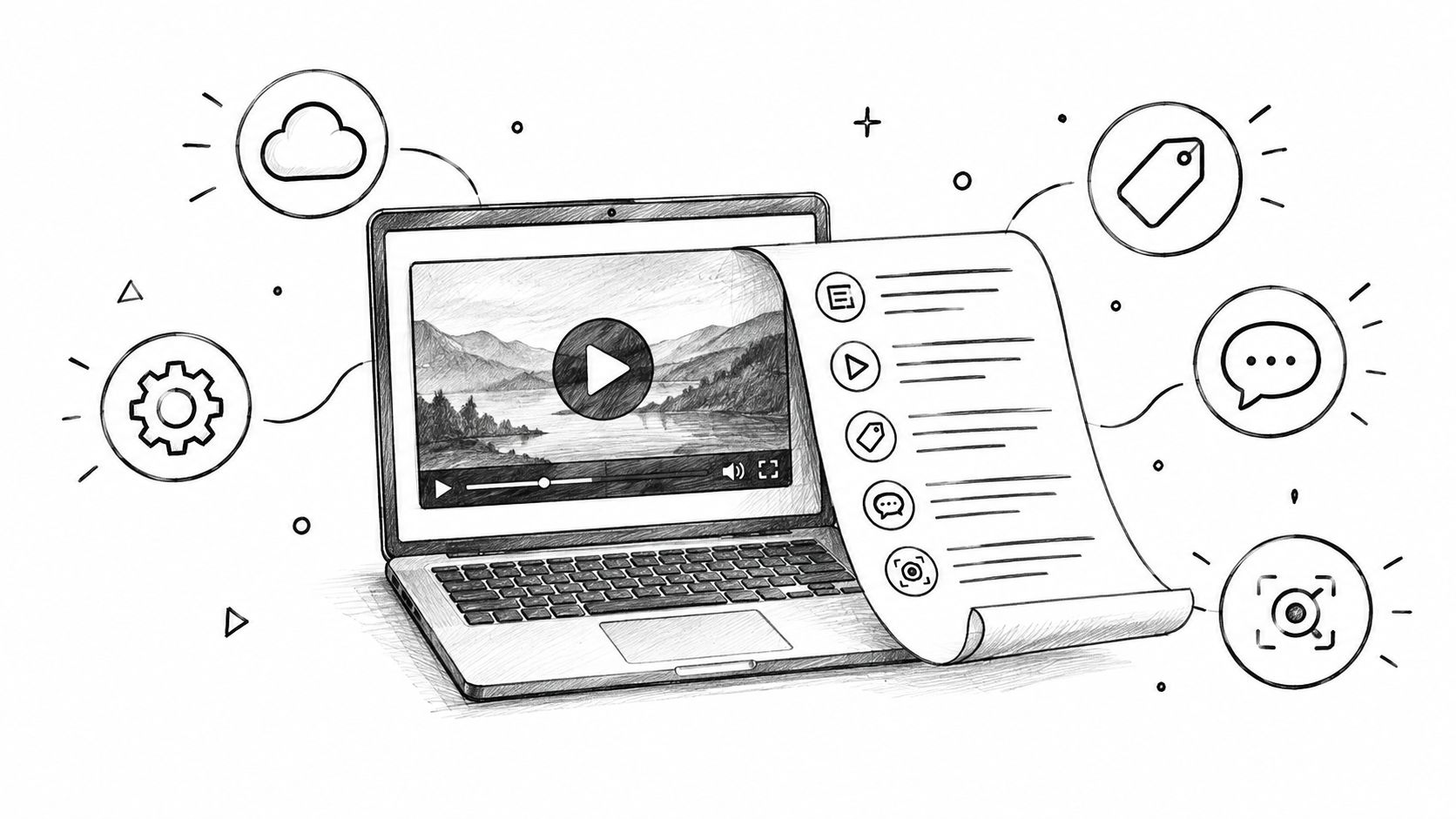
The most accurate or feature-rich tool isn't automatically the best video to text converter. A transcript for searching a meeting is a different deliverable from editable captions, a text-based video edit, multilingual subtitles, or visible slide text extracted through OCR. Choosing by feature count alone often leaves you with the wrong editor, the wrong export format, or a transcript that still needs substantial review.
The better question is: what job must the text complete? This comparison considers expected accuracy, editing environment, caption and document exports, language support, collaboration, pricing structure, privacy, and the point at which human review becomes necessary. It also separates automatic speech transcription from OCR, which reads text visible inside a video rather than spoken words.
The list covers dedicated transcription services, browser editors, meeting capture platforms, social caption tools, and timeline-based software. AI4Chat is a complementary workspace rather than a replacement for these specialist tools. After you approve a transcript, you can use it to create summaries, scripts, captions, briefs, and other generative content in one browser-based environment.
Contents
- Scribiz
- Descript
- Rev
- Sonix
- Trint
- Happy Scribe
- VEED
- Kapwing
- Otter.ai
- Notta
- Adobe Premiere Pro Speech to Text
- Choose the Workflow Before the Tool
Table of Contents
- 1. Scribiz
- 2. Descript
- 3. Rev
- 4. Sonix
- 5. Trint
- 6. Happy Scribe
- 7. VEED
- 8. Kapwing
- 9. Otter.ai
- 10. Notta
- 11. Adobe Premiere Pro Speech to Text
- Top 11 Video-to-Text Converter Comparison
- Choose the Workflow Before the Tool
1. Scribiz
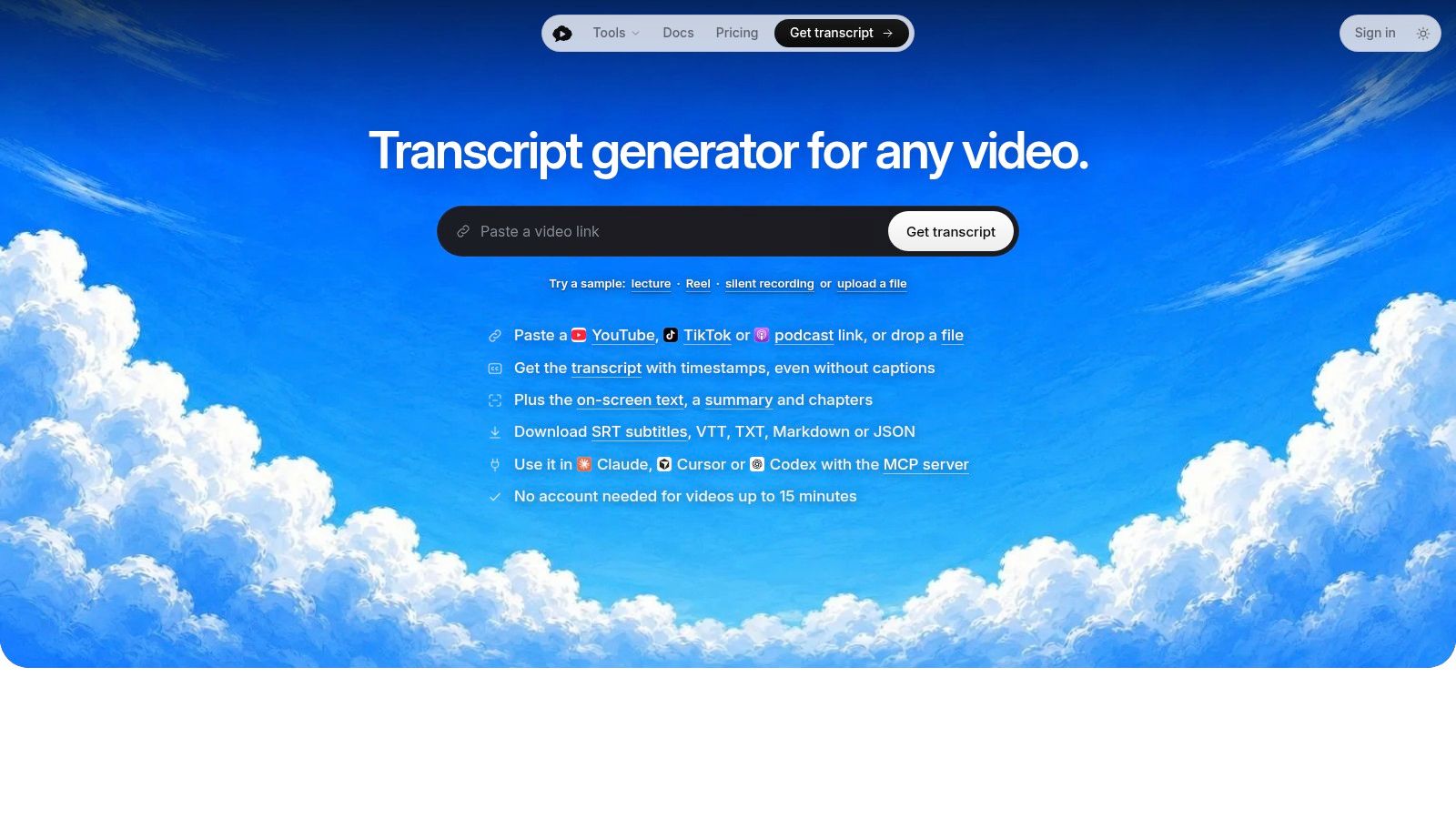
Scribiz's video-to-text converter is designed for people who need more than a spoken-word transcript. It can work from a YouTube link, direct media link, podcast source, or uploaded file, then produce transcript text, subtitles, summaries, chapter lists, and timestamped notes. That broader approach matters when a video contains slides, code, charts, demonstrations, or other text that speech recognition alone would miss.
The service can listen to a video even when a reliable caption track isn't available. It can also read on-screen text and associate notes with points in the timeline. For a researcher, educator, journalist, or content team, that creates a more useful record of the source than a plain transcript. A summary with clickable chapters can also make a long recording easier to review before anyone starts editing.
Where Scribiz fits best
Scribiz is a strong choice when the input is distributed across platforms or when the output must feed another workflow. It supports common subtitle and document formats, including SRT, VTT, TXT, Markdown, and JSON. Speaker labels and timestamps help with interviews, voice recordings, and conversations, while the SRT generator is more useful for people moving from transcription into caption editing.
Its Listen, Watch, Both, and Auto modes give users a way to choose whether the task needs audio transcription, visual analysis, or both. The distinction is practical. If the video is mostly a single speaker with no important visuals, full visual processing may add little. If it contains slides or software demonstrations, ignoring the visual layer can leave important information out.
Practical rule: Use a representative clip before processing a full recording. Check names, specialist terms, speaker changes, and visible text separately.
The Mac app can reduce the need to send an entire video away for processing, while the API, CLI, and MCP server make Scribiz relevant to developers and AI-agent workflows. Its deletion and expiration controls also give teams concrete retention questions to investigate before uploading confidential material. Scribiz is the right fit for multimodal video understanding, source research, timestamped notes, and structured downstream processing. It's less suitable when the only goal is a polished broadcast caption package requiring professional human proofreading.
2. Descript
Descript treats transcription as the editing interface rather than a separate output. Upload a recording, receive an editable transcript, and remove words or passages to change the associated video. That workflow suits creators who think in scripts and sentences instead of tracks, keyframes, and timeline selections.
The advantage is speed during rough cuts. A podcast producer can remove a section from the transcript, a marketer can extract a short segment from a longer interview, and a small team can review wording in a shared project. Descript also supports multitrack work, caption exports, translation and dubbing options, summaries, clip generation, screen recording, webcam recording, stock media, and brand controls.
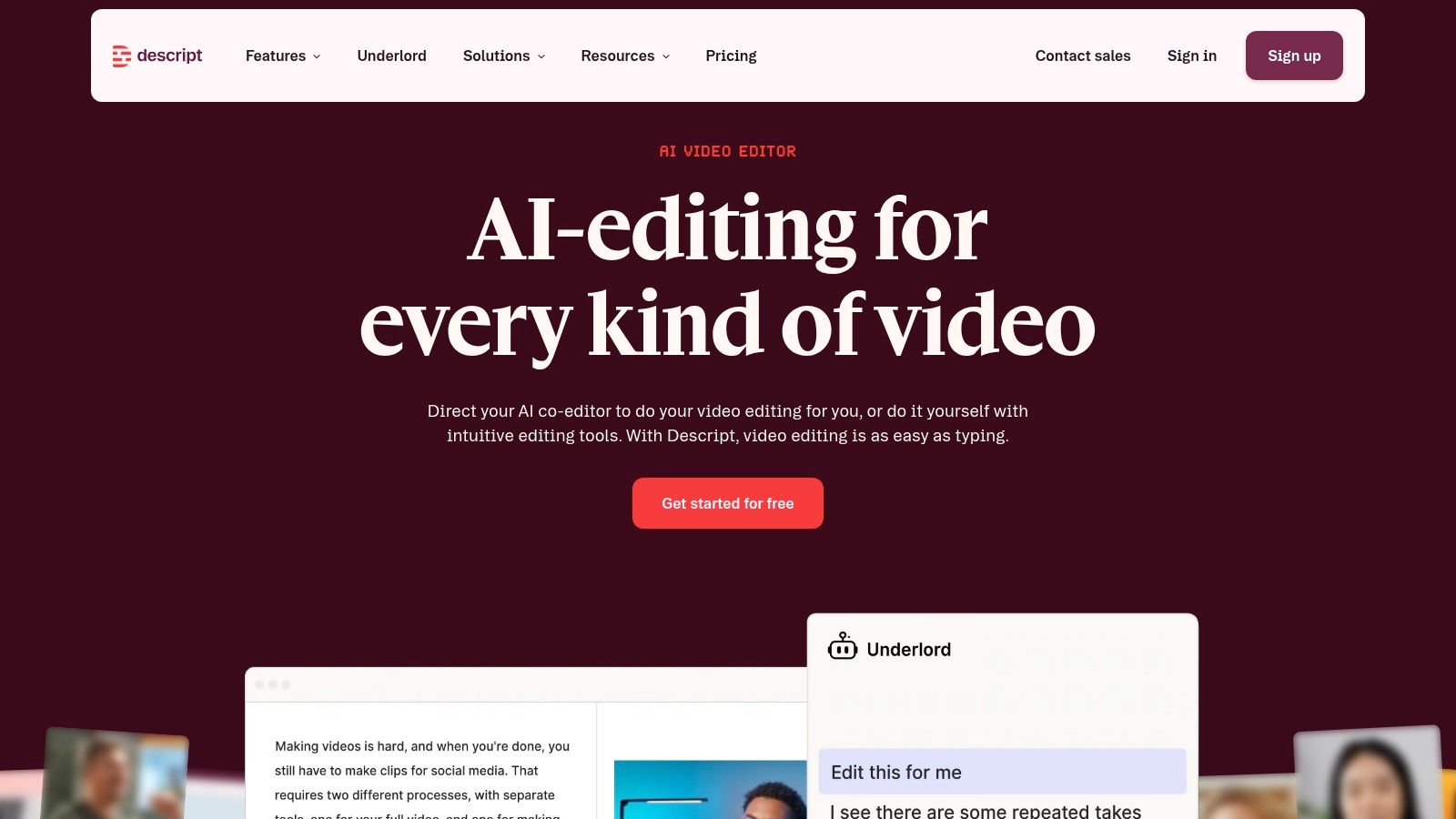
Its AI co-editor can assist with cleanup and repurposing, but automation doesn't remove the need to listen back to important edits. A transcript may omit a short qualification, misread a product name, or assign a phrase to the wrong speaker. Text-based editing is powerful precisely because it makes changes feel easy, so the editor still needs to confirm that the picture, audio, and intended meaning remain aligned.
Descript's pricing model is based around plan allowances such as media hours and AI credits. That structure is easier to plan when usage is predictable, but AI-heavy workflows can consume allowances faster than a simple transcript request. The application also has greater hardware and connectivity demands than a lightweight transcription page.
Choose Descript for editable video production, podcast editing, interviews, and turning long recordings into social clips. It's particularly useful for non-editors and collaborative content teams. For a broader comparison of text-led creator workflows, see this guide to AI UGC video editors for marketing agencies.
3. Rev
Rev is the clearest option on this list when the transcript itself is a deliverable that another person will publish, submit, or rely on. It combines automated transcription with human transcription, captioning, and subtitle services. That distinction is more important than a long feature list because the user can choose a draft workflow for internal use or a reviewed workflow for higher-stakes material.
Human transcription is especially relevant for legal content, broadcast work, formal interviews, accessibility deliverables, and recordings with difficult audio. Rev also supports translated subtitles, caption files, formatting options, and volume-oriented workflows. Its pricing calculator and add-on structure can help a buyer estimate the job before sending a large batch.
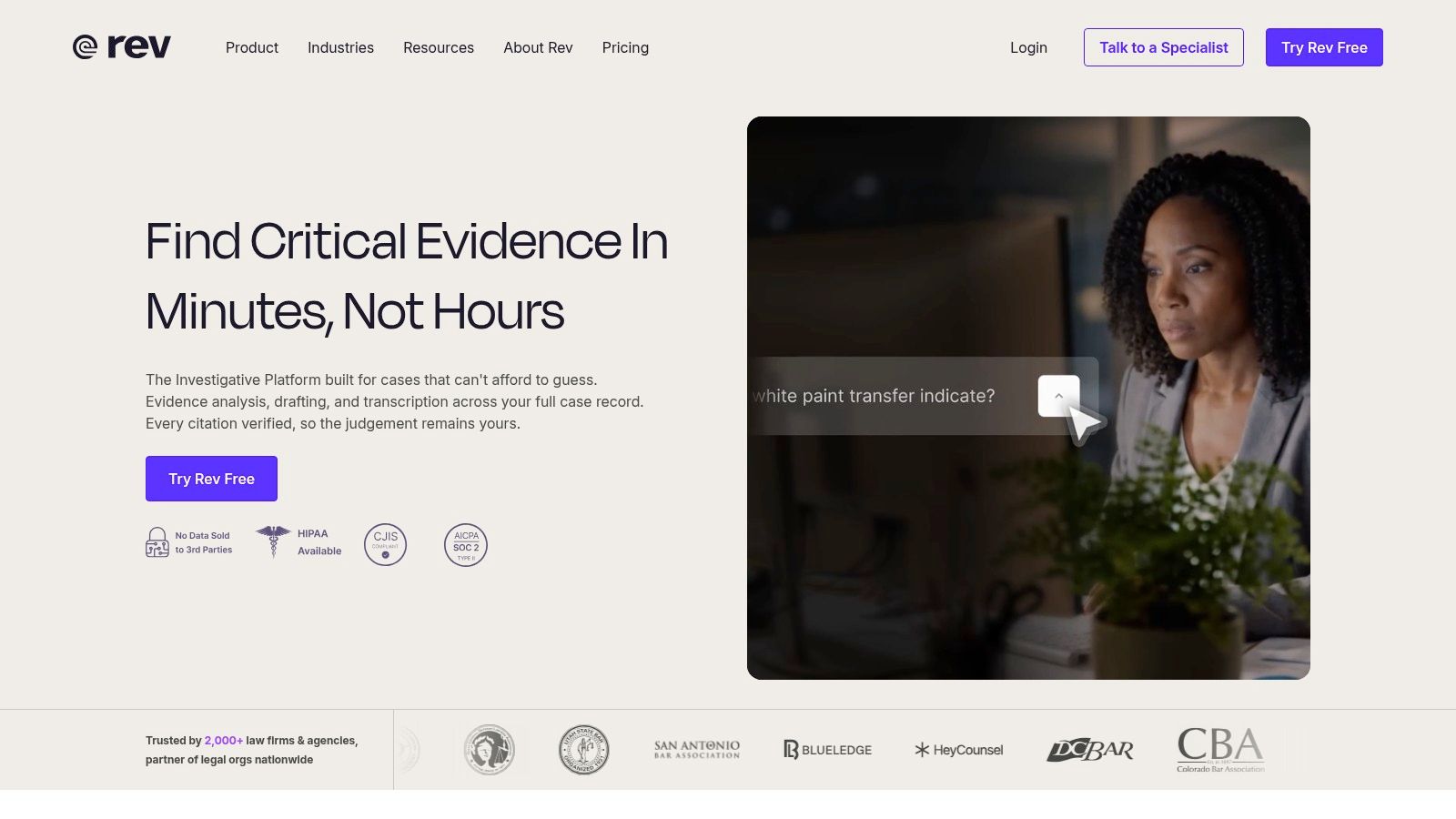
The trade-off is cost. Human review generally costs more than a purely automated transcript, and recurring or lengthy projects can become expensive if every file receives the highest level of service. An AI draft may be sufficient for searching an archive or preparing internal notes, while a public caption package may justify a reviewed output.
Rev is not the best choice for someone who wants to cut video directly by editing a transcript. It's better understood as a transcription, captioning, and subtitle production service. The practical question is not whether automation is available, but whether the final file needs a defensible review process.
Choose Rev for publish-ready captions, legal or compliance-sensitive material, broadcast-oriented formatting, and teams that want human quality available when needed. Use the AI option when speed and rough text matter more than final polish.
4. Sonix
Sonix focuses on fast AI transcription with a browser editor and a useful range of export paths. It suits teams that need to process recordings, correct the text, and move the result into another application rather than build the entire video inside the transcription platform.
The editor supports speaker labeling, timestamps, and custom vocabulary. Those controls are valuable for interviews, research recordings, and recurring terminology. A custom dictionary can reduce repeated corrections, but it shouldn't be treated as proof that every technical term will be recognized correctly. Users still need to sample the output against the audio.
Sonix offers pay-as-you-go and subscription billing, with usage metered by audio duration. That gives occasional users a way to avoid committing to a large ongoing plan, while frequent teams may prefer the predictability of a subscription. AI analysis features such as summaries and topic extraction are associated with subscription workflows, so buyers should compare the plan against the actual job rather than choosing solely on transcription access.
Its export options include subtitle files, document formats, and paths intended for non-linear editing systems. This makes Sonix a practical middle ground between a basic transcript service and a full video editor. It doesn't provide a built-in human review service, however. The quality-control responsibility remains with the user or production team.
A clean export is only useful if it matches the destination. Check whether the next application needs SRT, VTT, a document, or an editing-system format before processing the batch.
Choose Sonix for flexible AI batch transcription, browser-based correction, and teams that need multiple export formats. It's a particularly sensible fit for regular production work with an internal reviewer. If a file must be publication-ready without internal quality control, a human service is a safer choice.
5. Trint
Trint is built for editorial teams that need to search, review, translate, and collaborate around recorded material. Its strongest use case isn't a single personal transcript. It's a newsroom, agency, documentary team, or enterprise content operation where several people may need access to the same source library.
The platform combines AI transcription with speaker detection, batch upload, transcript search, live capture, translation, and a story-building workflow. That arrangement changes how teams use video to text. Instead of downloading isolated TXT files, editors can find a quote across a collection, bring selected passages into a story, and send the work toward subtitle or editing-system exports.
Trint supports formats such as SRT, VTT, and editing-oriented files. That matters when a transcript must become a caption track or a rough assembly rather than remain a document. Integrations can also reduce manual movement between capture, transcription, review, and production.
Its enterprise orientation is both an advantage and a limitation. Data controls, collaboration, support, and workflow management matter more as the number of users and recordings grows. A casual user who needs one interview converted to text may find the platform more elaborate than necessary. Pricing can also be less straightforward for smaller buyers because team and enterprise arrangements may be quote-driven.
The quality question remains separate from the collaboration question. A shared transcript still needs a person to verify names, quotations, dates, and technical wording before publication. Trint improves the editorial process, but it doesn't turn automatic recognition into an infallible record.
Choose Trint for newsrooms, agencies, multi-seat editorial work, searchable media projects, and teams moving transcripts into structured production pipelines. It's less compelling for occasional personal notes or simple social captions.
6. Happy Scribe
Happy Scribe is useful when a team alternates between fast AI output and professionally reviewed subtitles. That flexibility gives it a different position from tools that are primarily editors or meeting assistants. The buyer can start with an automated transcript for discovery, then request human proofreading or subtitling when the material is ready for publication.
The platform supports transcription, subtitling, translation, and several delivery formats, including SRT, VTT, DOCX, and MP4. It can connect with common storage and media workflows, and its meeting notetaker features extend the product beyond one-off file conversion. Broad language support also makes it relevant to teams preparing content for audiences in different markets.
The main decision is how much review the output deserves. A draft transcript can help a producer identify useful clips, locate a quote, or prepare a first summary. A subtitle file that will represent a speaker publicly needs more attention to timing, line breaks, names, punctuation, and translation choices.
Happy Scribe's AI usage is tied to plan allowances and minute top-ups. That can be convenient for teams with variable demand, but users should monitor quotas when they combine transcription, subtitling, and translation in the same workflow. Human services add a separate cost layer, which is appropriate when quality requirements justify it but unnecessary for disposable internal notes.
Choose Happy Scribe for mixed AI and human workflows, multilingual subtitle production, and teams that want one service for rough transcripts and reviewed delivery files. It's a stronger fit than a meeting-only tool when subtitles are part of the final output.
7. VEED
VEED is an editor-first choice for people who want spoken words to become visible, styled captions quickly. Its auto-subtitle workflow can generate captions inside a browser project, while translation tools, templates, aspect-ratio presets, and team workspaces support social publishing.
The important distinction is between a transcript and a finished social asset. VEED is designed to help with the latter. Users can style captions, place them safely within a vertical or square frame, and produce a video that is ready for a platform workflow. Its subtitle API extends that approach to teams that need automated rendering rather than manual work in the editor.
That convenience can make VEED feel heavy if the only requirement is a clean TXT file. The application also has plan-dependent usage limits and pricing details that should be checked against the intended volume. A social team should estimate not only transcription needs, but also how often it will render, translate, resize, and revise videos.
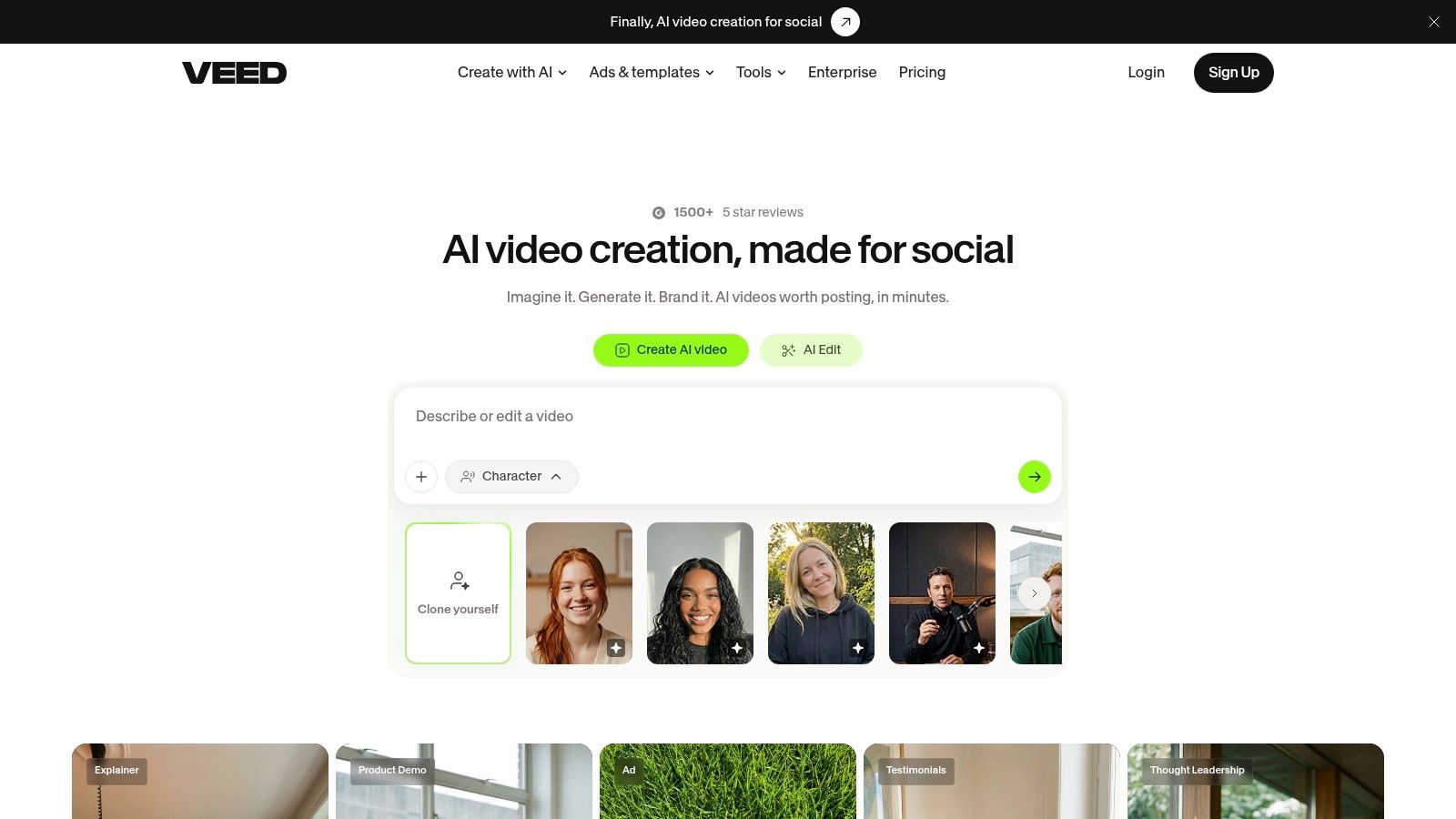
Automated captions still require a review pass. A misspelled name or incorrect phrase becomes more visible when it is burned into the final video. Check the caption against the audio, confirm that line breaks remain readable, and review translated text separately rather than assuming the source transcript is enough.
Choose VEED for styled social captions, short-form publishing, browser-based editing, and automated caption rendering through an API. For plain transcript research, a dedicated transcription platform will usually be more direct. Teams comparing creator tools can also review AI video translation capabilities and alternatives.
8. Kapwing
Kapwing makes the video-to-text workflow accessible to creators who want a quick transcript and a finished social video in the same browser. Its Auto-Subtitle tool creates editable text from speech, while the editor lets users customize caption appearance and adapt a project to formats used by TikTok, Reels, and YouTube.
The product is strongest at the point where transcription becomes publishing. A creator can correct a phrase, select a caption style, add brand elements, and export without installing a desktop editor. Templates and workspace controls also help small teams keep recurring formats consistent.
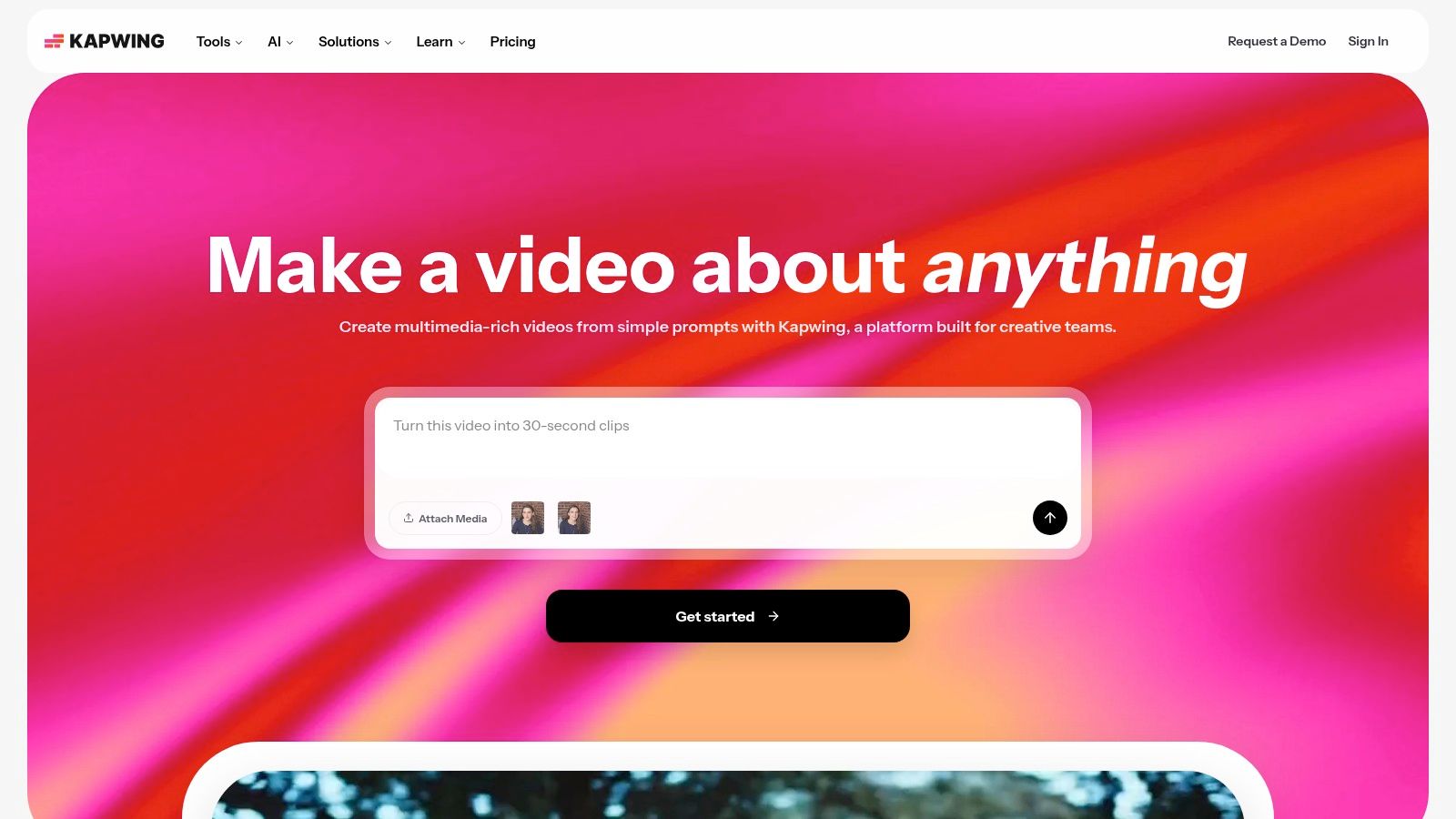
Kapwing supports subtitle downloads as well as translation and dubbing workflows. That makes it more versatile than a basic caption generator, although each additional transformation creates another review point. A translated caption can be grammatically correct and still fail to preserve the speaker's intent, terminology, or tone.
The free workflow includes a watermark, so creators who need clean delivery should account for the relevant paid plan. Usage allowances and export conditions also matter more than the presence of an Auto-Subtitle button. Before choosing Kapwing for regular production, test a real clip containing names, interruptions, and background sound.
Kapwing isn't a replacement for a full non-linear editor when the project needs detailed sound mixing, complex compositing, or precise timeline control. It is a practical shortcut for fast social work.
Choose Kapwing for creators, small marketing teams, quick caption fixes, branded social videos, and browser-only production. Select another tool when you primarily need research transcripts, advanced editorial exports, or a human-reviewed caption package.
9. Otter.ai
Otter.ai approaches video to text from the meeting rather than the editing suite. It can capture live conversations through integrations with Zoom, Google Meet, and Microsoft Teams, import recordings, identify speakers, and produce summaries and action items. That makes it especially useful when the value lies in what participants decided, not in the final appearance of the captions.
The service works well for webinars, interviews, classes, and internal meetings. Cross-device access and collaboration allow participants to revisit the same conversation, while team vocabulary can help with recurring names and terminology. Business-oriented features add administration and analytics for teams that need more oversight.
Import minutes and upload allowances depend on the selected plan. That makes quota planning necessary for users who intend to process long recordings or many meetings. It also means Otter may be less suitable as an unrestricted archive conversion tool than a service with a workflow built around batch media processing.
Otter's transcript is useful for finding decisions, preparing notes, and creating follow-up content. It isn't an NLE, so it offers less control over caption styling and broadcast-oriented delivery. If the output must become a polished subtitle track, export the text and timing into a tool designed for caption production, then review it there.
Privacy checkpoint: A meeting transcript can contain names, opinions, and other personal data. European legal guidance treats transcription as personal-data processing under the GDPR and recommends clear notice, a lawful basis, retention rules, deletion procedures, and appropriate agreements. The guidance on transcribing video conferences explains why ordinary workplace speech still deserves governance.
Choose Otter.ai for meeting capture, classes, interviews, webinars, summaries, and action-item extraction. It's not the first choice for timeline-based editing or high-control caption design. For questions about turning audio into usable text with other workflows, see this guide to audio transcription options and limitations.
10. Notta
Notta is aimed at people who want video and audio transcription without committing to a complex editorial system. Its web, desktop, and mobile applications, along with a browser extension, make it convenient for students, small teams, and professionals who capture material in different places.
Users can import media, transcribe live sessions, translate content, identify speakers, and export to TXT, DOCX, PDF, or SRT. Glossary support is useful for recurring terms, while team plans and knowledge features make the service more than a one-time file converter. The workflow remains straightforward enough for someone who doesn't work in video production.
The main limitation is scale within each plan. Minutes and import durations are capped according to the account, so frequent users need to compare expected recording volume with the included allowance. A low entry price can look attractive until a team processes longer interviews, classes, or recurring meetings and needs additional capacity.
Notta has fewer advanced editorial and non-linear editing exports than enterprise-oriented platforms. That isn't a serious weakness for a student extracting notes from a lecture or a small business converting a customer call into a document. It becomes more important when an editor needs a transcript linked precisely to a complex timeline or a subtitle file prepared for a demanding delivery standard.
Choose Notta for lightweight video-to-text conversion, students, small teams, mobile capture, and common document exports. Choose Otter.ai when meeting collaboration is central, or Sonix and Trint when editorial exports and batch processing matter more.
11. Adobe Premiere Pro Speech to Text
Adobe Premiere Pro is the natural choice for editors who don't want transcription to leave the timeline. Its Speech to Text tools can transcribe sequences, create captions, let editors adjust text and timing in the Text panel, and export an SRT file or burn captions into the finished video.
That integration changes the economics of the workflow. Premiere users don't need a separate per-minute transcription service for routine projects because the capability sits inside an existing editing environment. They can correct a transcript while checking the footage, apply caption styling, and preserve the relationship between words, audio, and picture.
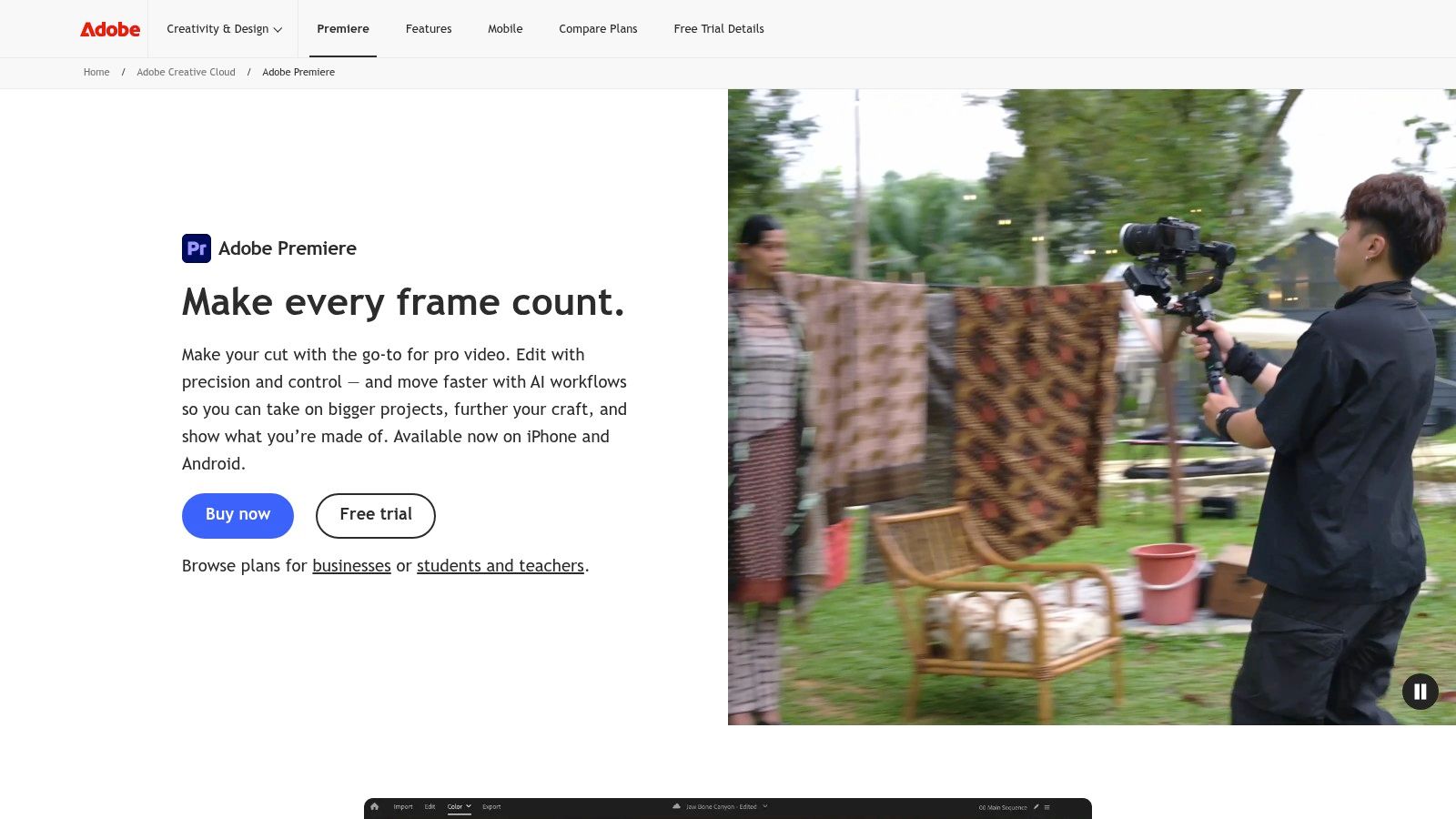
The drawback is complexity. Premiere Pro has a steeper learning curve than a browser transcript page, and it requires the wider application workflow rather than a quick upload-and-download interaction. Cloud processing can also fail or require a retry, so a production team should leave time for checks rather than treating transcription as instantaneous.
Premiere's built-in tools are best for editors who already need the NLE. They aren't as convenient for someone who wants to search a large collection of recordings, produce meeting notes, or extract visible slide text through OCR. The platform can create and style captions, but it doesn't replace professional human review for consequential accessibility or legal material.
Choose Premiere Pro for timeline-based editing, caption styling, Adobe production workflows, and editors who want transcript corrections to remain attached to the sequence. It's the most efficient option here when the edit already lives in Premiere.
Top 11 Video-to-Text Converter Comparison
| Tool | Core features | UX & accuracy | Price / Value | Best for | Standout / USP |
|---|---|---|---|---|---|
| Scribiz | Browser & Mac: transcripts, on‑screen text, summaries, chapter lists, SRT/VTT/JSON, API/CLI/MCP | ★★★★☆, timestamped notes, speaker labels | 💰 Free tier + minute‑based pricing; top‑ups never expire | 👥 Editors, researchers, creators needing on‑screen text | ✨ Reads slides/code, MCP server & local Mac processing 🏆 |
| Descript | Text‑based video editing, auto‑transcript, multitrack, Overdub/AI co‑editor, Brand Studio | ★★★★☆, fast iterative edits + collaboration | 💰 Freemium; subscription with media hours & AI credits | 👥 Podcasters, creators, teams repurposing long videos | ✨ Text‑based editing + AI co‑editor for rapid cuts 🏆 |
| Rev | Human & AI transcription, captions, translations, legal formats | ★★★★★ (human), publish‑ready accuracy | 💰 Human per‑minute premium; AI drafts cheaper | 👥 Broadcast, legal, compliance, high‑accuracy needs | ✨ 99%+ human accuracy & fast turnaround 🏆 |
| Sonix | Fast AI transcription, 50+ languages, speaker labeling, strong NLE exports | ★★★★☆, clean browser editor, reliable speed | 💰 Pay‑as‑you‑go or subscription; per‑second/hour pricing | 👥 Teams batching transcriptions & NLE workflows | ✨ Robust NLE export formats; predictable pricing |
| Trint | Enterprise transcription, translate, Story builder, live capture, collaboration | ★★★★☆, editorial & multi‑seat workflows | 💰 Quote/enterprise pricing; multi‑seat plans | 👥 Newsrooms, agencies, enterprise production teams | ✨ End‑to‑end editorial workflow & enterprise controls 🏆 |
| Happy Scribe | AI transcription + optional human proofreading, 60+ languages, many exports | ★★★★☆, flexible AI/human mix | 💰 AI minutes + paid human add‑ons; clear top‑ups | 👥 Publishers & teams needing occasional human polish | ✨ Seamless AI ↔ human workflow and broad format support |
| VEED | Browser editor, auto‑subtitles, Subtitle API, templates, social tools | ★★★★☆, very fast for styled captions | 💰 Freemium; Pro/team plans with usage limits | 👥 Social creators, marketers, automated caption pipelines | ✨ Subtitle API + platform‑safe styled captions |
| Kapwing | Auto‑subtitle, transcript editor, translate/dub, social templates | ★★★★, simple, quick UI | 💰 Free with watermark; Pro for watermark‑free exports | 👥 Social publishers & rapid content creators | ✨ Fast, template‑driven captioning for socials |
| Otter.ai | Live meeting transcription, Zoom/Meet integrations, speaker ID, action items | ★★★★☆, excellent for meetings & notes | 💰 Freemium with quotas; Business plans for teams | 👥 Teams, meetings, webinars, educators | ✨ Live capture + meeting summaries & analytics |
| Notta | Cross‑platform apps, real‑time transcription, Chrome ext, exports & glossary | ★★★★, convenient multi‑device capture | 💰 Affordable entry pricing; capped minutes per plan | 👥 Students, small teams, mobile users | ✨ Multiplatform capture & quick exports |
| Adobe Premiere Pro, Speech to Text | In‑NLE auto‑transcribe, stylable captions, timeline text editing, SRT export | ★★★★, integrated with timeline & editing workflow | 💰 Included with Premiere (Creative Cloud) subscription | 👥 Professional video editors using Premiere | ✨ Captions tied to timeline with strong styling controls 🏆 |
Choose the Workflow Before the Tool
A video to text converter should be selected by the handoff after transcription. If the next step is cutting a podcast or interview through words, Descript is the most direct fit. Its transcript is part of the edit, so creators can work in a familiar writing-like environment and then repurpose the source into shorter videos, captions, or other formats.
For quality-sensitive delivery, choose Rev or Happy Scribe when human review matters. Rev is the more service-oriented choice for formal, legal, broadcast, or compliance-sensitive material. Happy Scribe is more flexible when the same team alternates between AI drafts, translations, and professionally reviewed subtitles.
Sonix is a practical choice for flexible AI transcription, batch work, browser correction, and varied exports. It suits teams that can perform their own quality control. Trint is the better editorial choice when several people need to search, review, translate, and build stories from a shared collection of recordings.
For social publishing, select VEED or Kapwing. VEED is particularly relevant when a team wants styled captions and an API-led rendering process. Kapwing is approachable for creators who need quick transcript corrections, templates, branded exports, and no local installation.
Meeting workflows point elsewhere. Otter.ai is the stronger fit for live capture, meeting summaries, interviews, webinars, and action items. Notta is useful for lightweight capture across web, desktop, and mobile, especially when straightforward document exports are enough. Editors who already work in Adobe should use Premiere Pro Speech to Text, because the transcript and captions remain connected to the timeline.
Before committing to a recurring workflow, run this sequence:
- Test a representative clip: Include the audio conditions, speaker changes, accents, terminology, and background sound found in real projects.
- Check meaning, not just words: Look for omitted phrases, incorrect names, technical vocabulary, and speaker-label mistakes.
- Review timing: Confirm that timestamps and caption breaks match the speech and remain readable in the intended format.
- Export for the destination: Use SRT or VTT for subtitle workflows, a document format for notes, or an editing-system format when the transcript must create a rough assembly.
- Add human review where consequences are high: Public captions, legal records, accessibility deliverables, and sensitive interviews deserve more than an unchecked AI draft.
Accuracy varies sharply with recording conditions. A benchmark covering eight automatic speech-recognition engines and 205 hours of audio found that English accuracy had largely plateaued, while sports audio produced error rates about three times higher than the best-performing content. Clear, single-speaker English can reach under 5% word-error rates in industry conditions, but accents, overlapping speech, background noise, and specialist terminology can push errors to roughly 15–25%, as summarized in this analysis of caption and subtitle evidence. Those figures aren't a promise for any individual file. They're a reason to test the actual material.
Privacy belongs in the selection process too. Ask whether the provider retains audio, uses it for model training, supports deletion, identifies where processing occurs, and offers controls for speaker labels. Inform participants before recording or transcription, minimize retention, redact unnecessary names, and avoid sending highly confidential meetings through a service unless the arrangement is appropriate.
AI4Chat is a useful next step after approval, not a substitute for a dedicated transcription or caption platform. Bring the reviewed transcript into its browser-based workspace to summarize an interview, turn a conversation into a script, generate content variations, compare outputs in the Playground, or continue into image, video, and music workflows. The product reference point is AI4Chat, while the specialist converter should remain responsible for capture, transcription accuracy, caption timing, and delivery formats.
Choose the tool that matches the handoff, verify the output against real audio and visuals, and keep a human in the loop whenever the transcript carries professional, legal, accessibility, or reputational consequences.
If you're ready to build a repeatable workflow, test one representative recording in your preferred tool, approve the transcript manually, and bring the cleaned text into AI4Chat to create summaries, scripts, captions, and campaign variations from the same source.